
USB flash drives are one of the most overlooked security risks on corporate Windows devices. They are small, easy to lose, and a simple way for sensitive company data to leave the organisation. They can also introduce malware, unwanted tools, or unapproved files when plugged into a managed device.
If your Windows devices are managed by Microsoft Intune, you can create a USB storage restriction policy in a few minutes, without touching each device manually. This guide walks you through two methods, shows you how to verify that the policy applied in Intune, tests the result directly on the endpoint, and explains what to check when the policy does not apply as expected.
What this policy blocks and what it does not block
Before creating any policy, it helps to understand exactly what the USB storage restriction targets and what it leaves untouched. This is one of the most common points of confusion for admins who are new to Intune endpoint security.
The settings in this guide control removable storage access. They do not disable the physical USB ports, and they do not block every USB device connected to the computer.
🚫 What gets blocked
The policy targets Windows removable storage classes. This includes USB flash drives, external hard drives, portable SSDs, SD card readers, and other removable media that Windows presents as storage.
✅ What does NOT get blocked
USB input devices such as keyboards, mice, webcams, and headsets use different device classes. A removable storage access policy does not block normal keyboard or mouse use.
Full block versus write block only
The two methods covered in this guide behave differently depending on which setting you use. Understanding this before deployment is important:
| Setting | Blocks read | Blocks write | Result |
|---|---|---|---|
| All Removable Storage classes: Deny all access | Yes | Yes | Drive is completely inaccessible |
| Removable Disk: Deny Write Access | No | Yes | Drive can be read, but files cannot be copied to it |
For most organisations, a full block is the better starting point because it prevents both reading from and writing to removable storage. If you need to allow users to read from a USB drive but prevent them from copying company data to it, the Deny Write Access approach gives you that flexibility.
ℹ️ Important: The full block setting takes precedence over individual removable storage settings. Do not combine full-block and write-only policies on the same devices unless you have a clear reason and have tested the result.
Prerequisites
Before creating the policy, confirm the following are in place:
- Windows 10 or Windows 11 devices enrolled in Microsoft Intune
- An appropriate Intune role, such as Intune Administrator, Endpoint Security Manager, or Policy and Profile Manager
- A Microsoft Entra ID security group containing the Windows devices you want to target
- A USB flash drive available for testing after the policy applies
The Settings Catalog method does not require Microsoft Defender for Endpoint onboarding. The Attack Surface Reduction method is created from the Endpoint security area of Intune, and Microsoft documents Defender Antivirus as the primary antivirus prerequisite for Attack Surface Reduction profiles. If you plan to use advanced Defender Device Control features such as reusable device groups, granular allow/deny rules, auditing, or advanced reporting, review your Microsoft Defender for Endpoint licensing requirements before production deployment.
Method 1: Settings Catalog RECOMMENDED
The Settings Catalog is the cleanest way to deploy a full USB storage block in Intune. It uses a Windows Administrative Templates setting exposed through Intune and applies a full block across removable storage classes.
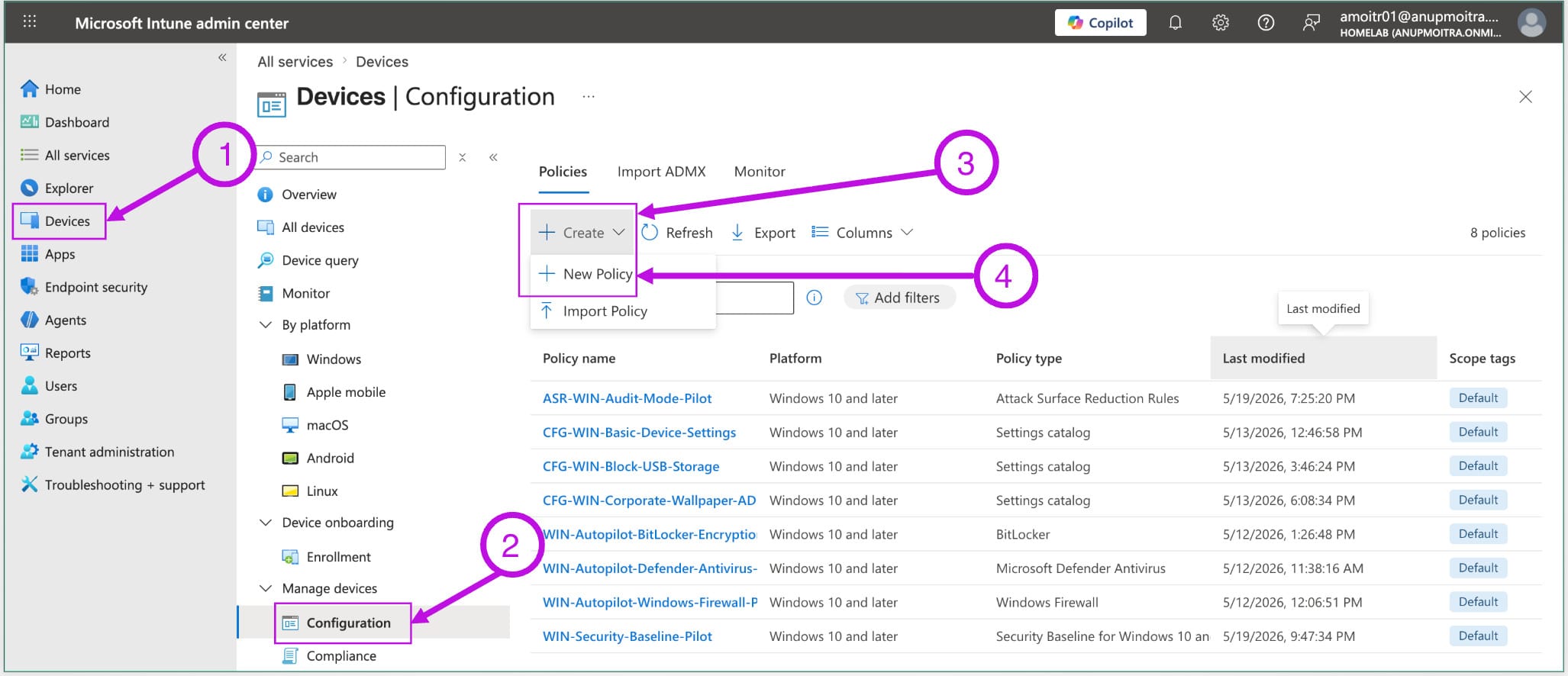
Step 1: Create a new configuration policy
Sign in to the Microsoft Intune admin center and navigate to:
Step 2: Select platform and profile type
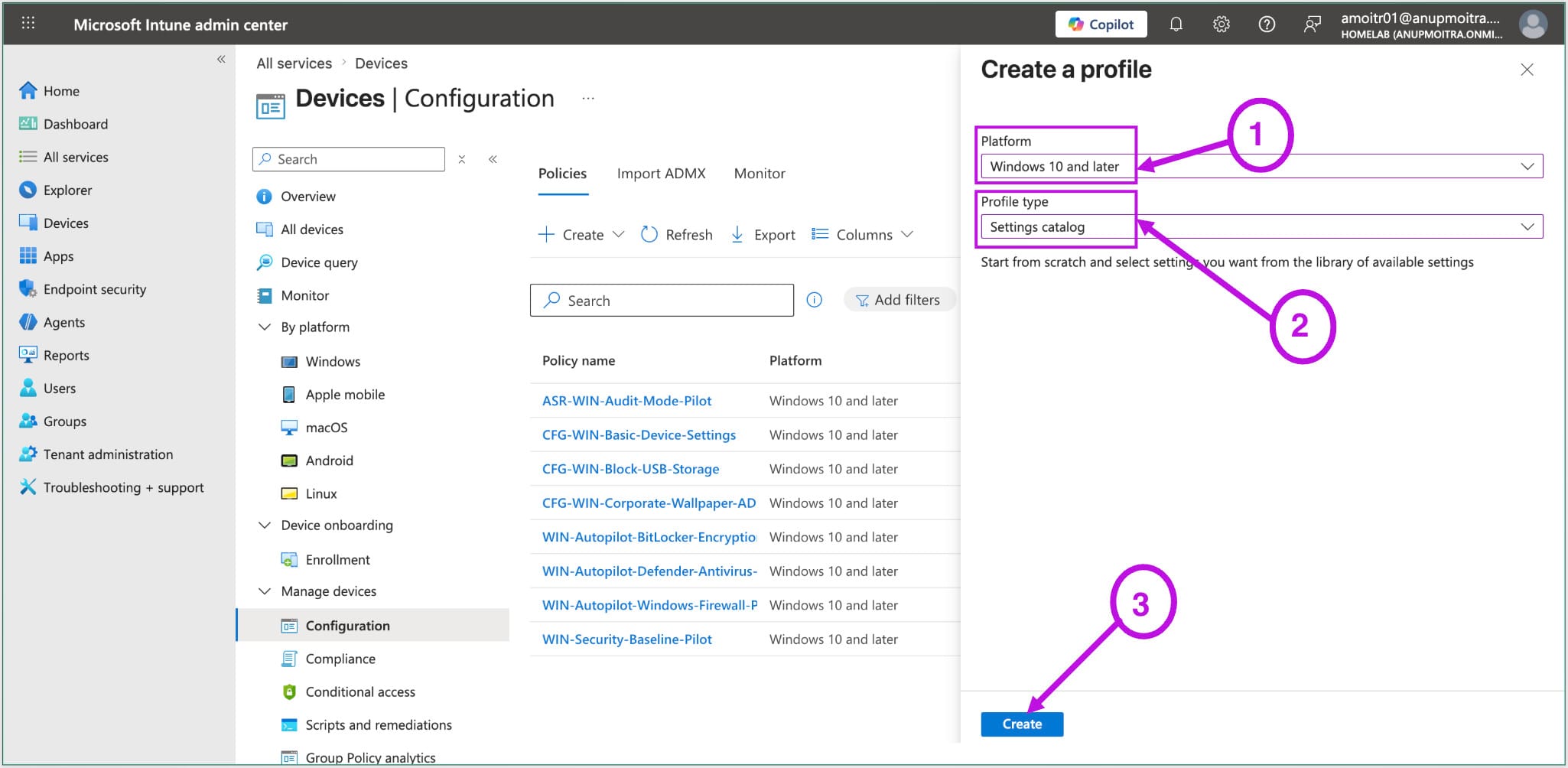
On the Create a policy screen, configure the following and click Create:
| Platform | Windows 10 and later |
| Profile type | Settings catalog |
Step 3: Name the policy
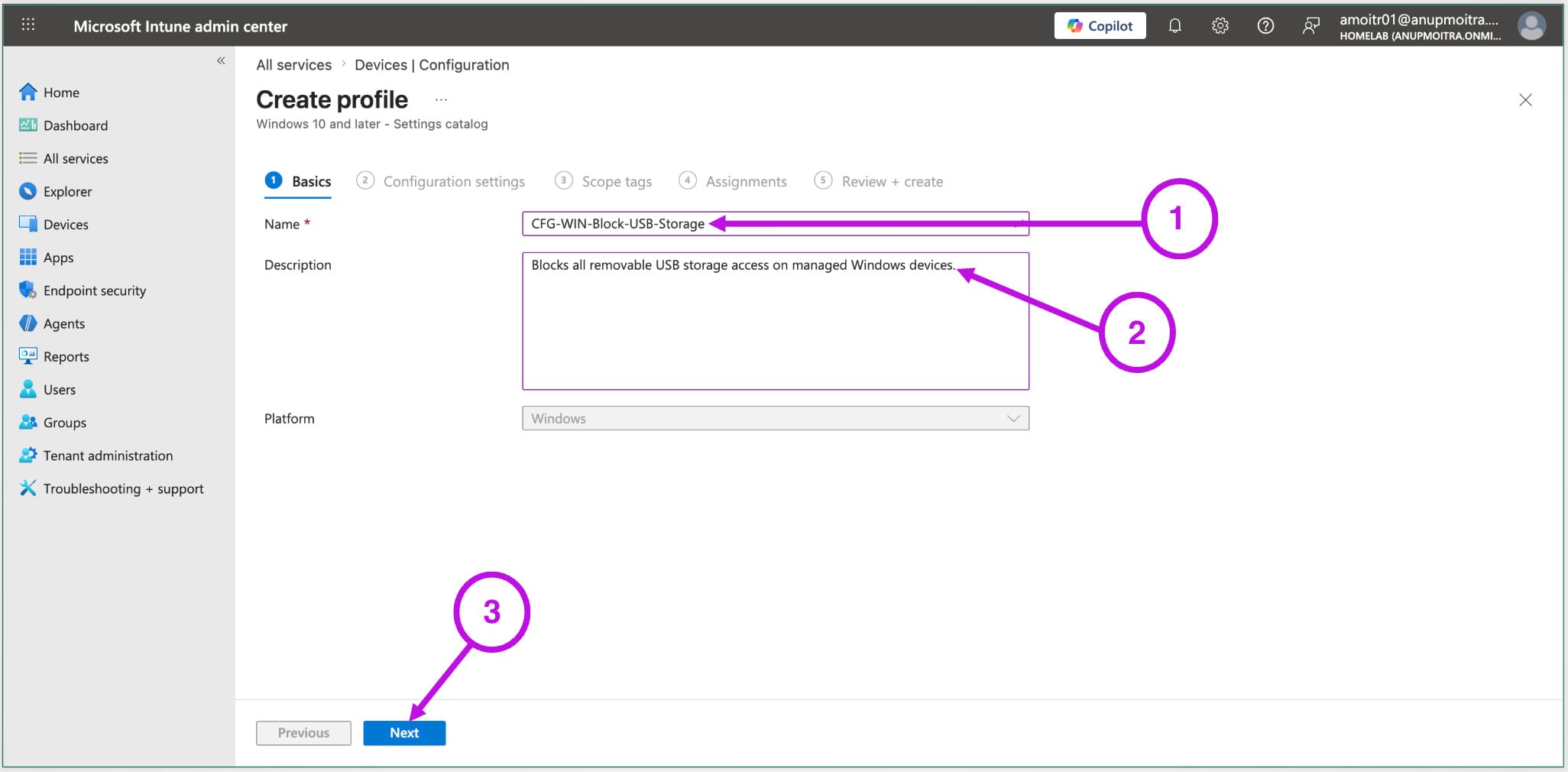
On the Basics tab, give the policy a clear name that your team will recognise. A consistent naming convention makes policies easier to manage as your Intune environment grows.
| Name | CFG-WIN-Block-USB-Storage |
| Description | Blocks all removable USB storage access on managed Windows devices. |
Click Next.
Step 4: Add the USB block setting
On the Configuration settings tab, click Add settings. The Settings picker opens on the right side of the screen. You can either search for the setting name or browse to:
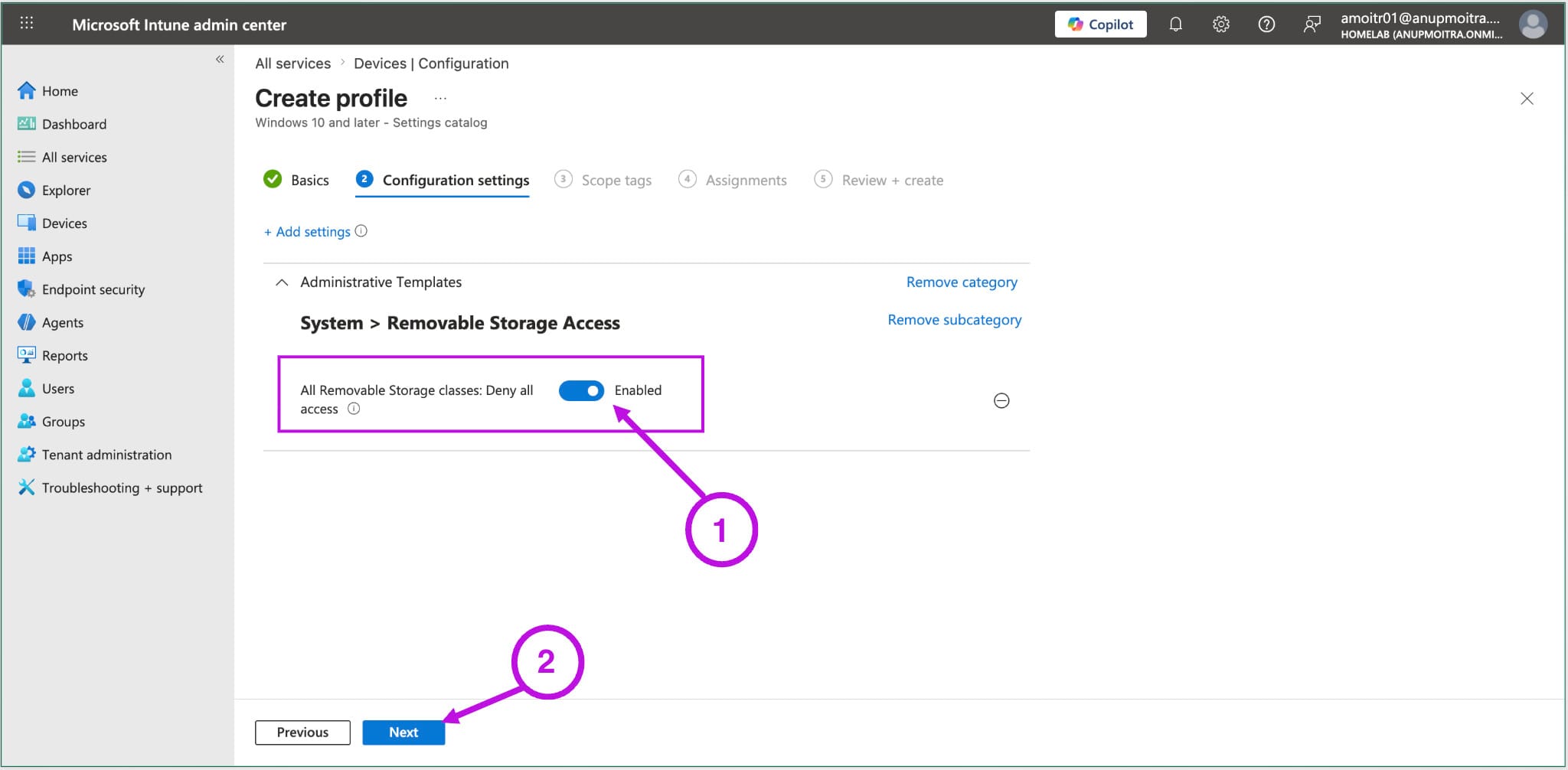
Find All Removable Storage classes: Deny all access and add it to the policy.
💡 Device scope tip: If Intune shows both user-scoped and device-scoped versions of the setting, choose the device-scoped setting for this scenario. USB storage blocking should apply to the device, not only to a specific signed-in user.
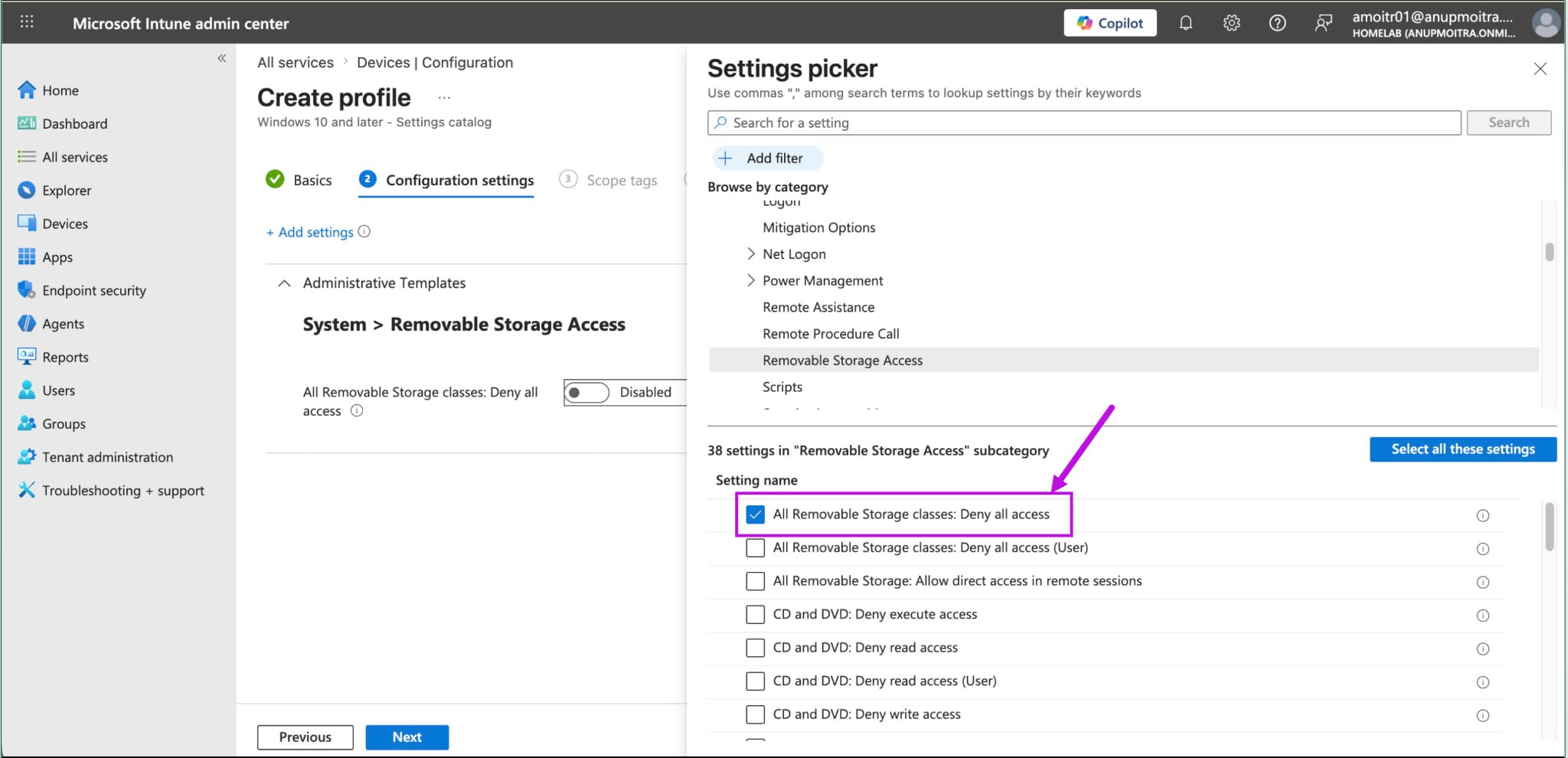
Back on the Configuration settings tab, set the value to Enabled and click Next.
Step 5: Assign and create
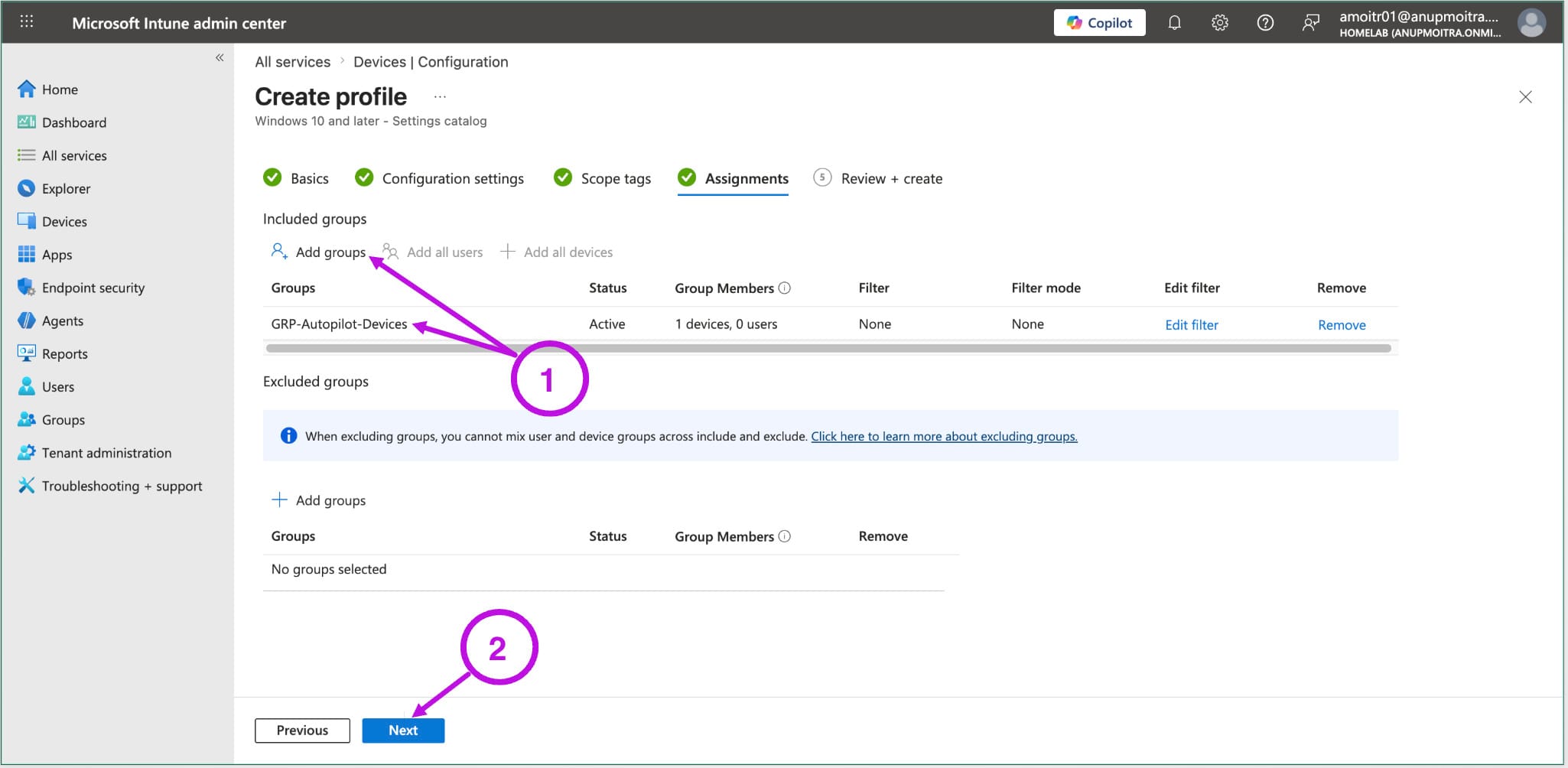
On the Assignments tab, click Add groups under Included groups and select your target Windows device group. Click through Scope tags, review the summary, and click Create. See Section 5 for guidance on which group type to use and why it matters.
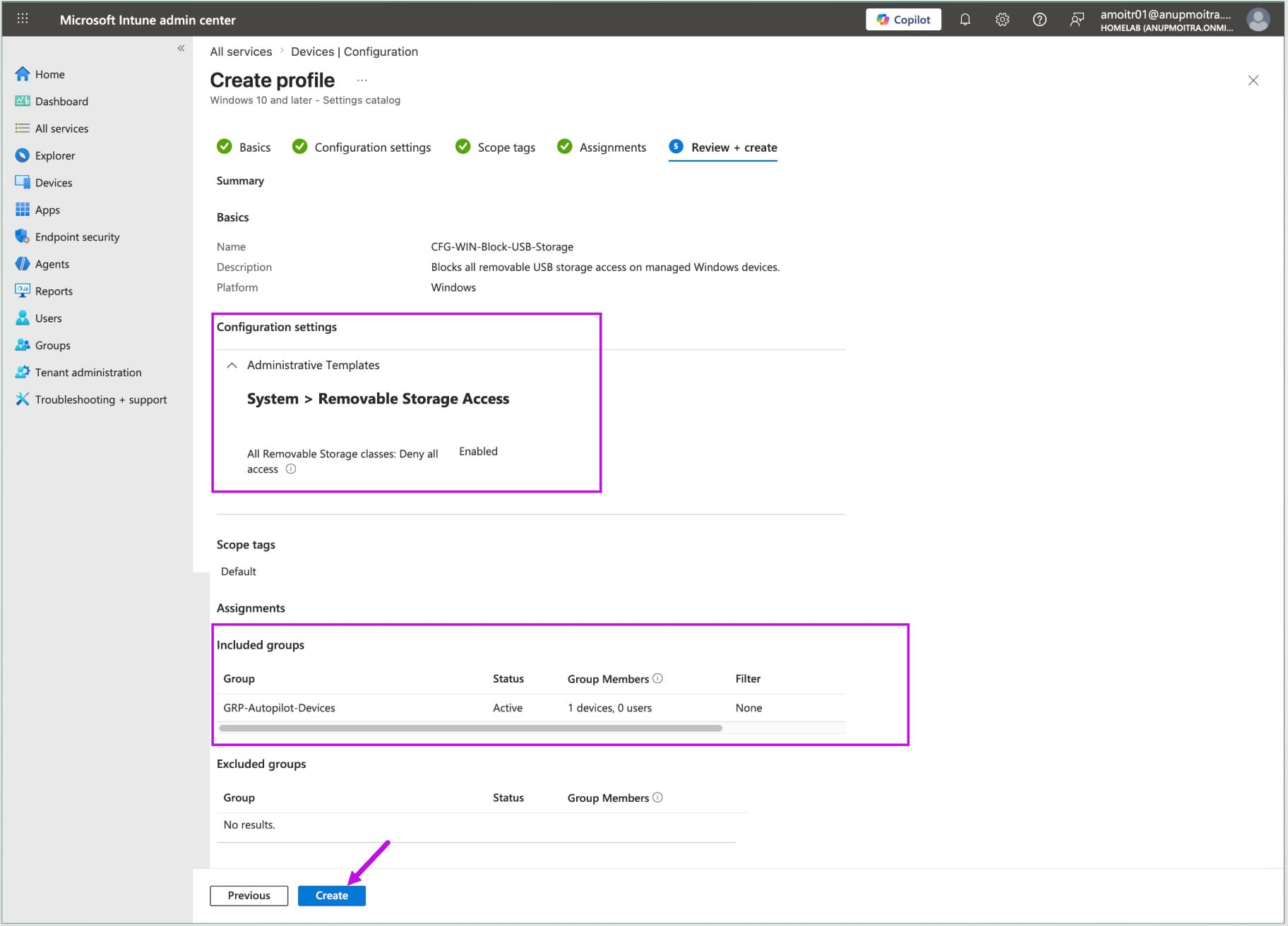
The policy is now created and will be delivered to devices in the assigned group when they next check in with Intune.
Method 2: Attack Surface Reduction Device Control Policy
The second method uses the Endpoint security area of Intune rather than a standard Configuration profile. This is the right approach if you want to block write access to USB drives but still allow users to read from them, or if you are already managing removable media as part of a broader Attack Surface Reduction strategy.
⚠️ Requirement reminder: For Attack Surface Reduction profiles, Microsoft documents Defender Antivirus as the primary antivirus prerequisite on Windows devices. If you only need a full USB storage block, Method 1 is simpler.
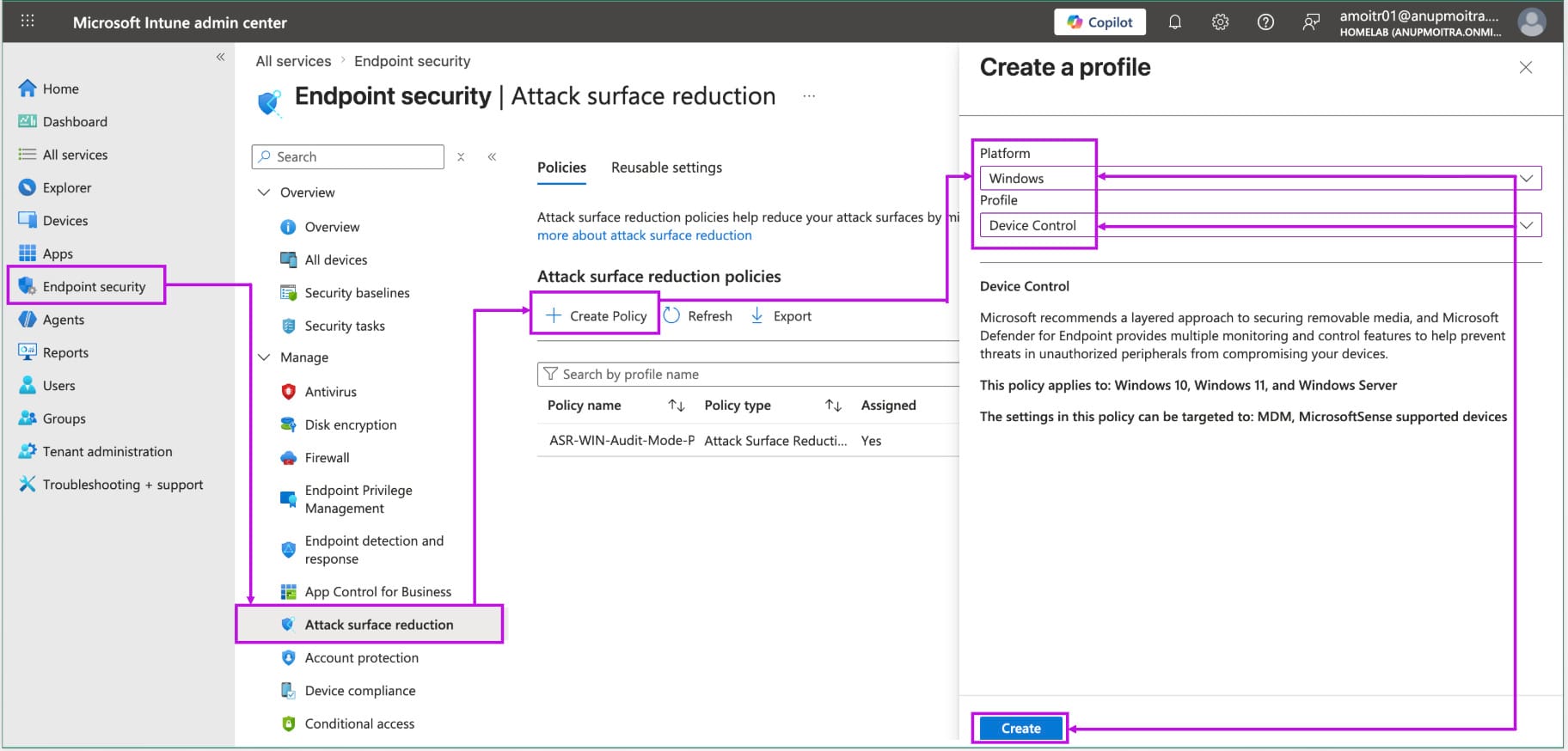
Step 1: Navigate to Attack Surface Reduction
Step 2: Select platform and profile
| Platform | Windows |
| Profile | Device Control |
Click Create.
Step 3: Name the policy and configure the setting
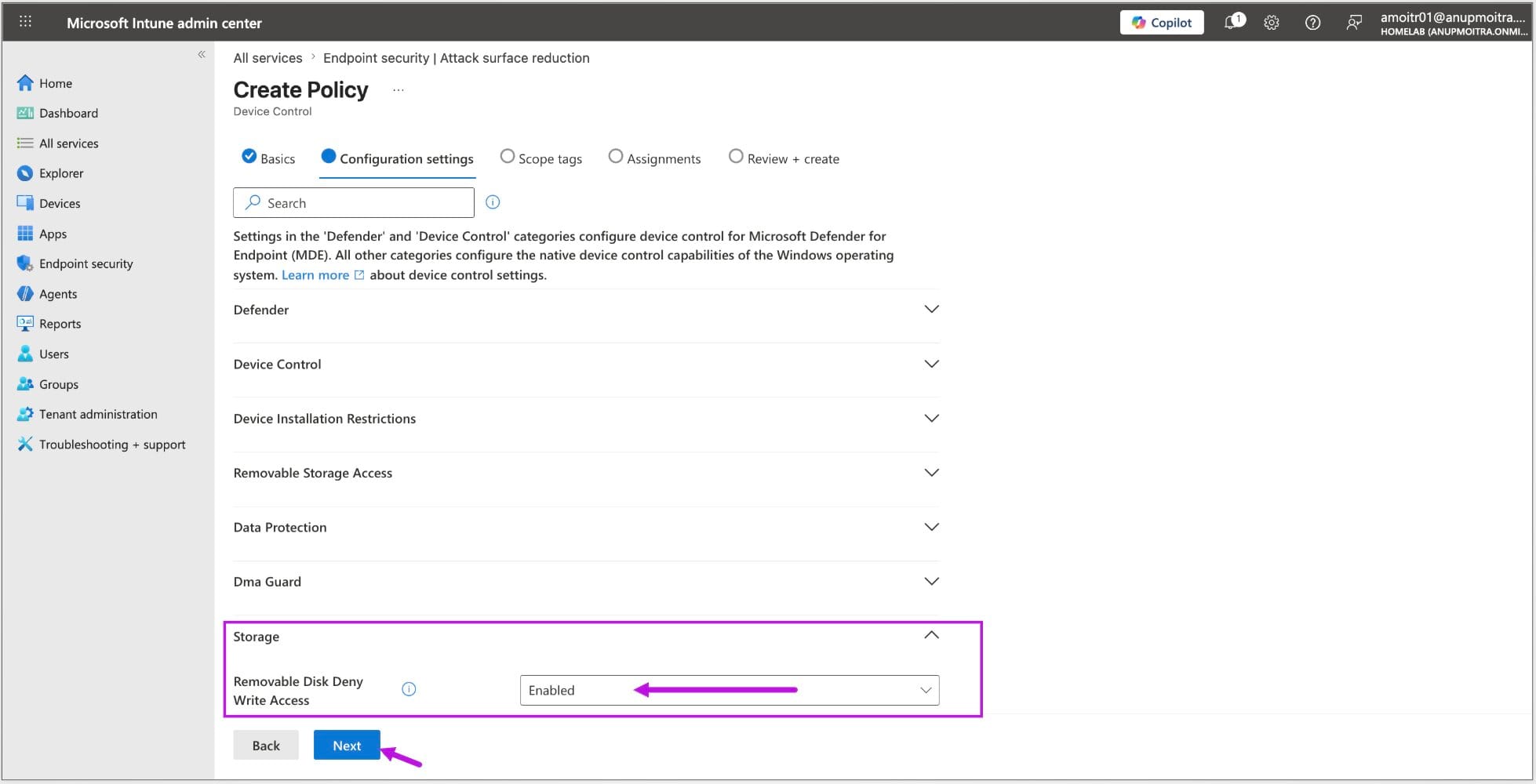
Give the policy a descriptive name on the Basics tab. On Configuration settings, expand the Storage category and locate Removable Disk: Deny Write Access. Set this to Enabled.
⚠️ Important: The setting is called Deny Write Access, so setting it to Enabled means you are enabling the denial. In simple terms: Enabled = write access is blocked. Disabled or Not configured means write access is allowed by default.
Step 4: Assign and create
On the Assignments tab, add your target Windows device group, click through Scope tags, review the summary, and click Create.
Assigning the policy to the right group
One of the most important decisions in any Intune policy deployment is whether to assign to a device group or a user group. For USB storage blocking, a device group is the recommended choice.
Here is why. A USB storage block is a machine-level security control. The goal is for the restriction to apply to that Windows device regardless of who signs in. Device targeting makes the policy easier to understand, easier to report on, and easier to exclude cleanly when a specific device needs an exception.
ℹ️ Technical note: Intune can apply device-scoped settings through different assignment types, but using a device group avoids confusion around sign-in timing and user-to-device relationships. For this article, keep the design simple: include a device group and, if needed, exclude a device group.
| Assignment type | How it works | Recommended for USB block? |
|---|---|---|
| Device group | Policy assignment is based on the device object. This is best when the setting should apply to the machine regardless of who signs in. | Yes |
| User group | Policy assignment follows the user. This can be useful for user-specific settings, but it is not the cleanest design for a device-wide USB storage restriction. | No |
Always start with a small pilot device group rather than assigning to all devices immediately. Deploy to a handful of test machines, confirm the block works as expected, check that no legitimate business workflows are disrupted, and then expand the assignment to the full fleet.
💡 Production consideration: Some users or teams may legitimately need removable storage access, such as an IT technician who uses a bootable USB drive or a team that receives data files from an external partner on a physical drive. Identify these exceptions before broad deployment. See Section 9 for a clean device-based exclusion approach.
Verifying the policy applied in Intune
After creating the policy and waiting for the device to check in, confirm that it was received and processed successfully. Navigate to:
The report can show Succeeded, Error, Conflict, Pending, or Not applicable. For a successful test deployment, you want the target device to show Succeeded with no Error or Conflict.
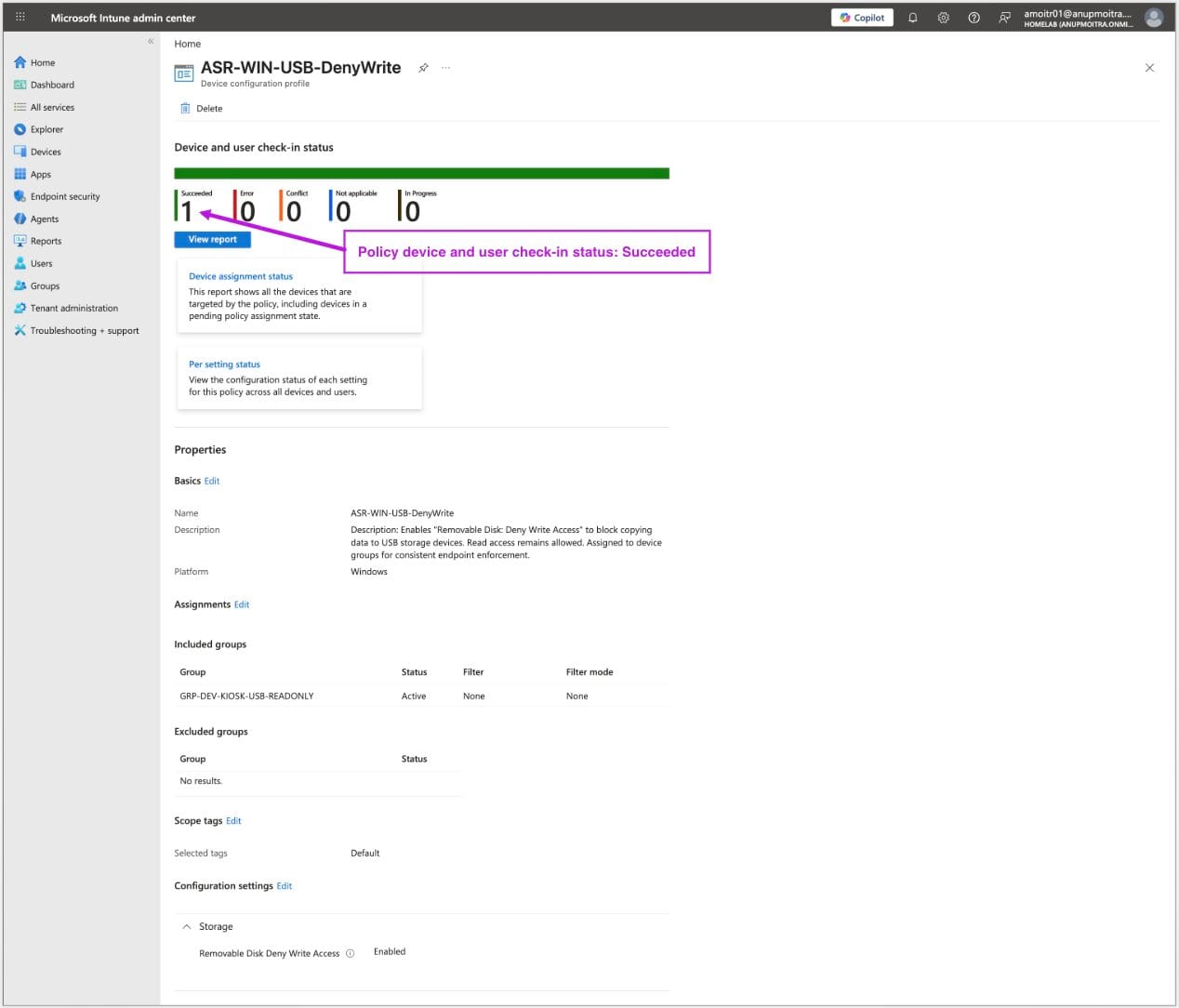
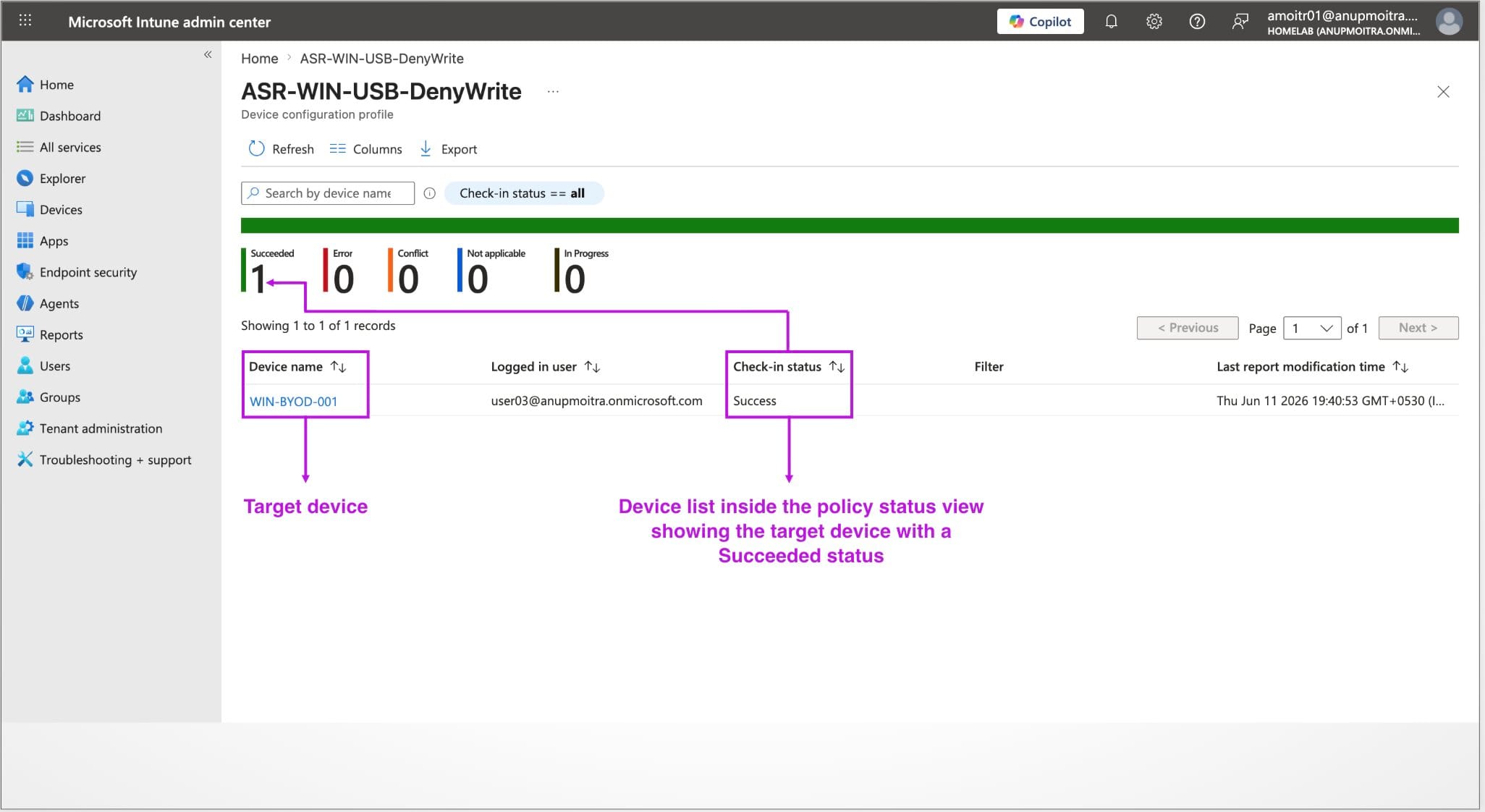
ℹ️ What Pending means: A Pending status usually means the device has not checked in with Intune yet, or the device has not reported the latest result back to Intune. This is normal shortly after policy creation. Force a manual sync or wait for the next check-in, then refresh the report.
💡 Reporting tip: Intune reporting can lag behind the actual device state. A device may already have the policy while the portal still shows a temporary Pending status. Always combine portal verification with endpoint testing.
Testing full USB block and write-only block on the endpoint
Intune reporting confirms that the policy was delivered to the device. You should also verify the actual behaviour on the endpoint itself. Reporting tells you the policy arrived. The endpoint test tells you what the user will experience.
How to test
Plug a USB flash drive into the managed Windows device. Open File Explorer and try to access the drive.
If the full block policy applied correctly, you will see an access denied message similar to this:
D:\ is not accessible.
Access is denied.
If you used the Deny Write Access method instead, the drive opens and you can read files from it. However, attempting to copy a file to the drive returns an access denied error.
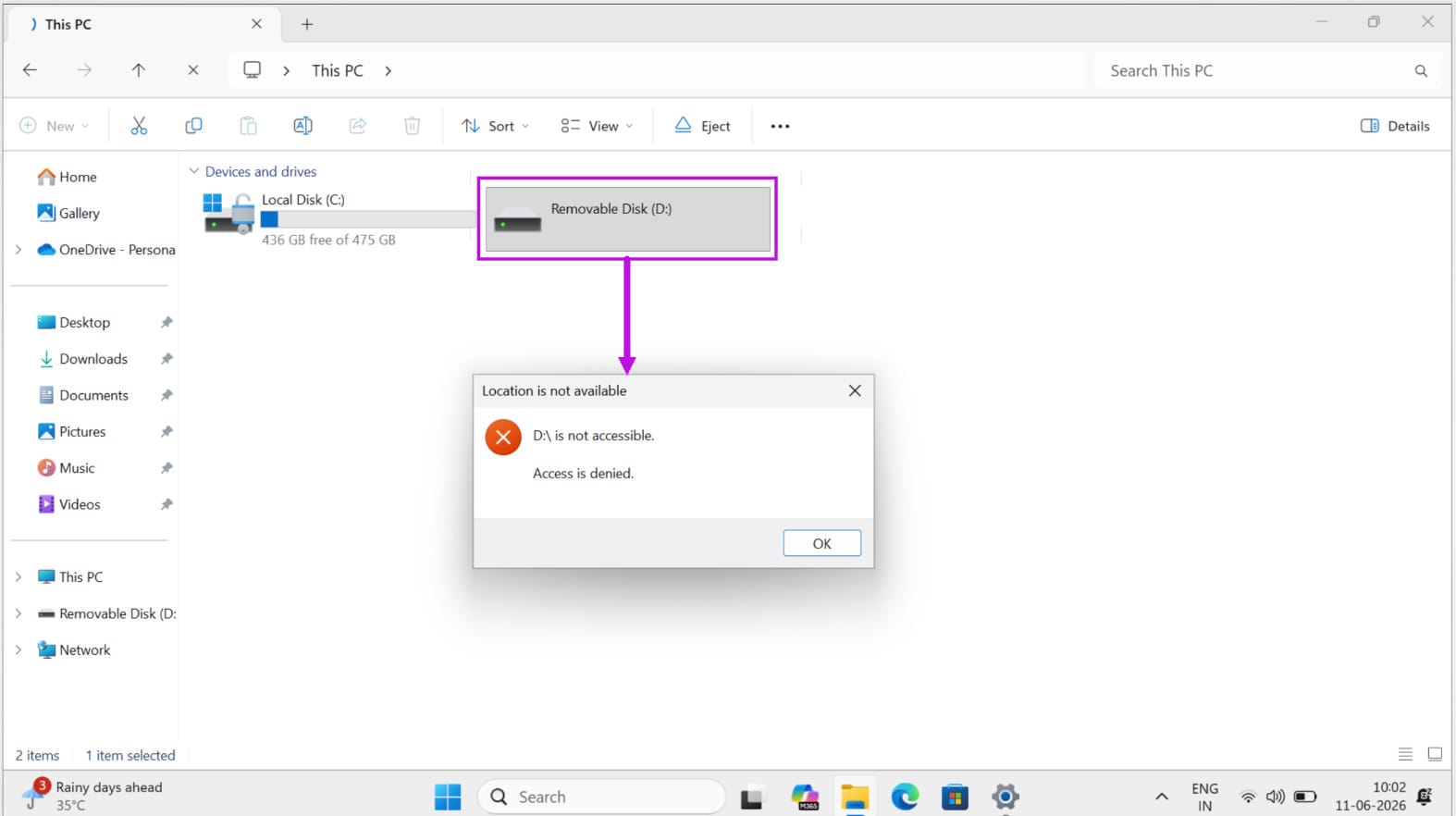
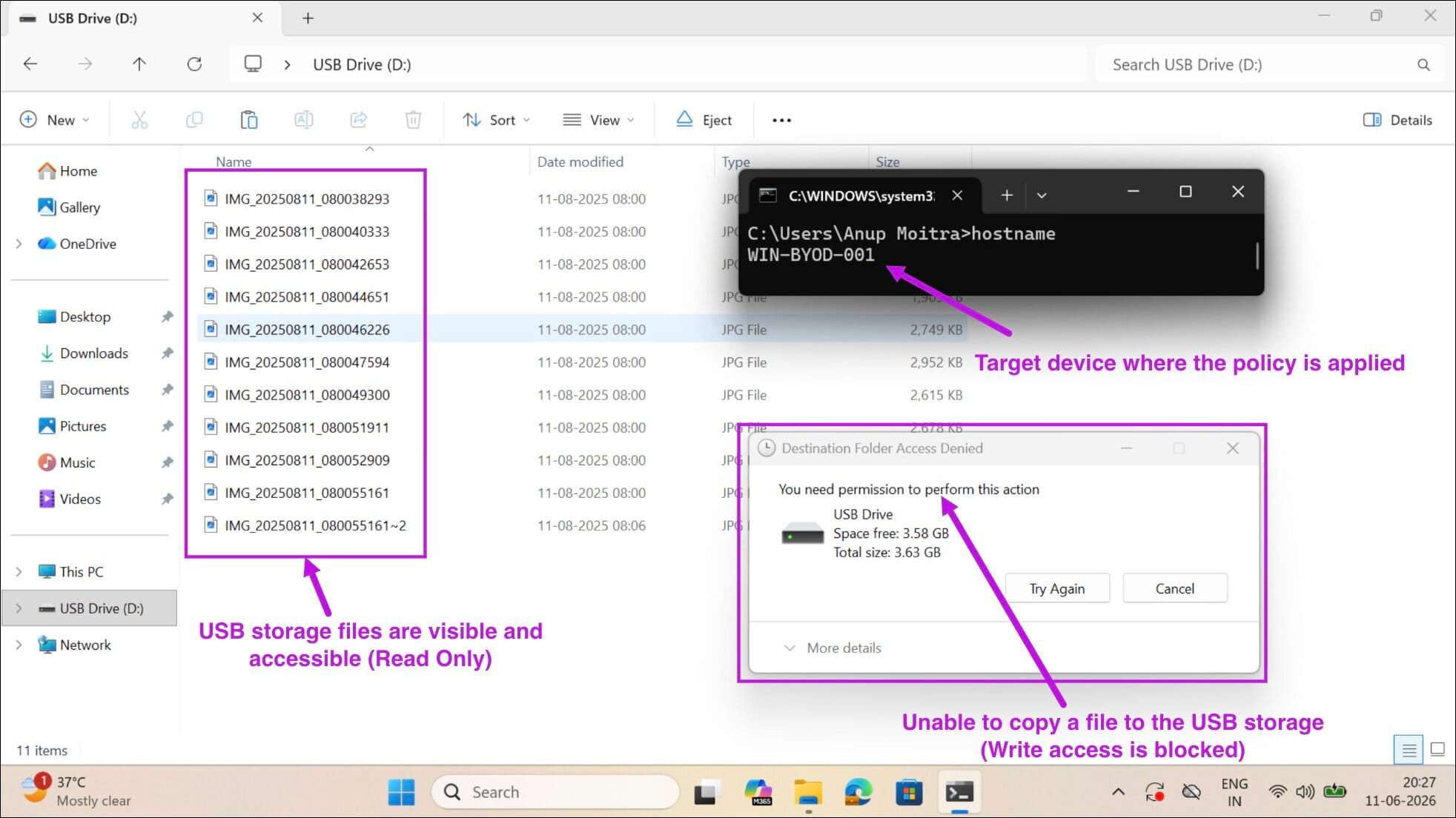
This is the definitive confirmation that the restriction is working. The access denied error on the endpoint is what you are aiming for, not just a green status in the Intune portal.
⌨️ Keyboards and mice: During testing, confirm that any USB keyboard or mouse connected to the device continues to work without interruption. The policy targets removable storage access and should not block normal USB input devices.
Troubleshooting when the policy does not apply
If the policy shows Pending in Intune after an extended wait, or the USB drive is still accessible on the endpoint after the policy reports Succeeded, work through the following checks in order.
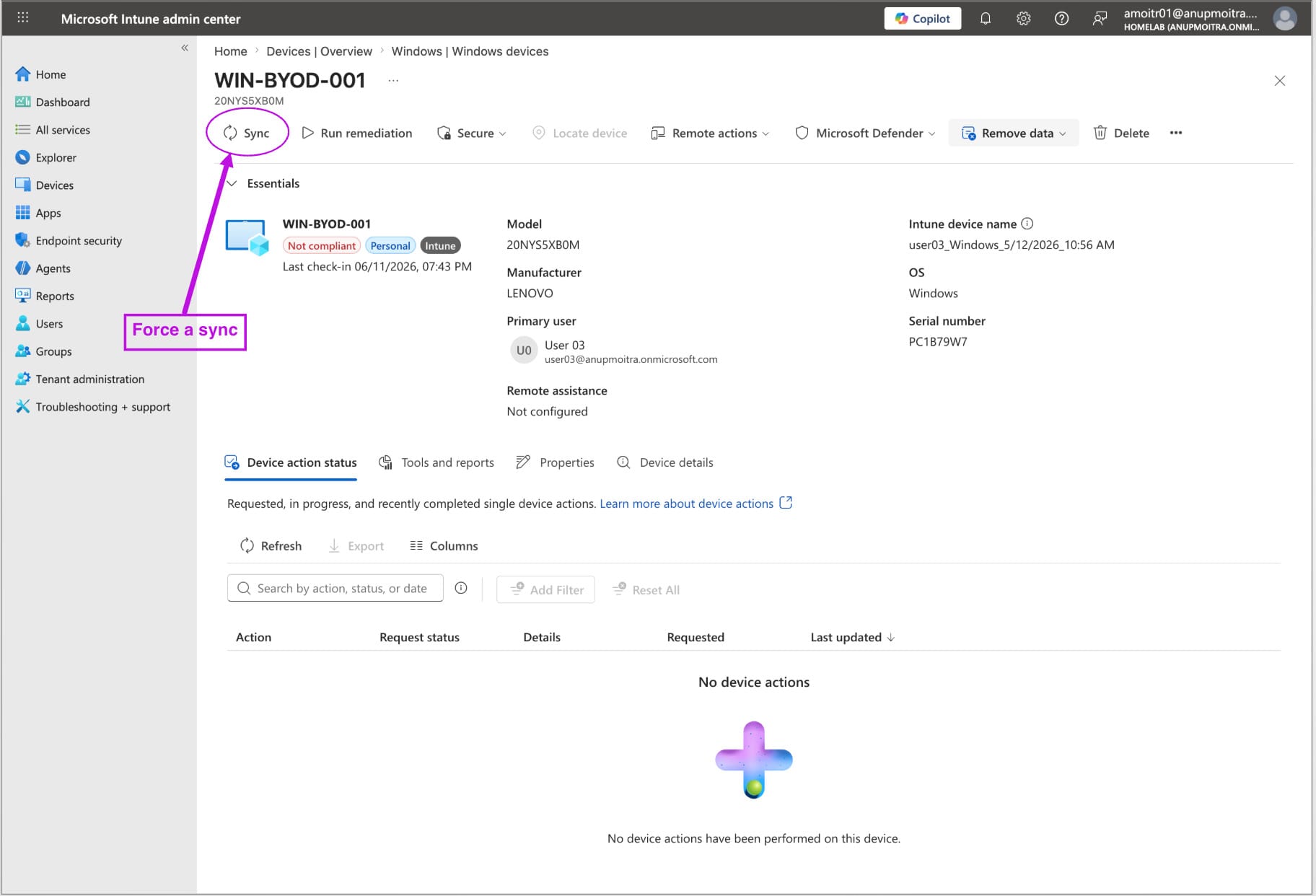
Force a sync
The most common reason a policy stays Pending is that the device has not checked in or has not reported its latest status. Standard maintenance check-ins happen on a schedule, but you can force a sync manually.
From the Intune admin center:
From the device itself:
From Company Portal: Open Company Portal on the device and use Settings → Sync, or go to the device details and check status.
Confirm the device is in the correct group
Open Microsoft Entra admin center and check the membership of the security group the policy is assigned to. If the target device is not a member, the policy will not reach it.
If you are using a dynamic device group, remember that group membership can take time to calculate. For urgent testing, use a small static pilot device group.
Confirm the device is enrolled in Intune
Open the device record in Intune and verify that the device is managed by Intune. A device that is only Microsoft Entra joined but not Intune enrolled will not receive Intune device configuration policies. These are related states, but they are not the same thing.
Check for policy conflicts
If the policy status shows Conflict rather than Succeeded, another policy is configuring the same setting with a different value. Open the policy report, review the per-setting status, and identify the setting causing the conflict. Then check which other policies also target the same device and configure the same setting.
To resolve the conflict, set the duplicate setting to Not configured in one of the policies, sync the device, and refresh the report.
Unplug, replug, and restart if needed
If the policy reports Succeeded but the USB drive is still accessible, unplug the USB drive and plug it in again. If the result does not change, restart the device and test again in a fresh Windows session.
| What you see | Most likely cause | What to do |
|---|---|---|
| Policy shows Pending | Device has not checked in, or has not reported the latest result | Force a sync, confirm the device is online, then refresh the report |
| Policy shows Conflict | Another policy targets the same setting with a different value | Use per-setting status to identify the duplicate and set one policy to Not configured |
| Policy shows Succeeded but USB still works | Wrong setting selected, policy conflict, stale device session, or USB drive was already connected | Confirm the setting, unplug and replug the USB drive, then restart and retest |
| Device does not appear in the status report | Device is not in the assigned group, is excluded, or is not enrolled in Intune | Check group membership, exclusions, and Intune enrollment state |
| Policy shows Not applicable | Setting does not apply to the device platform, OS version, edition, or scope | Confirm the device is a supported Windows device and that the correct device-scoped setting was selected |
| Policy shows Error | Policy failed to apply on the endpoint | Open the per-setting status, review the error code, and confirm OS support |
Creating an exclusion for approved devices
In most organisations, a small number of devices may need to be excluded from the USB block. For example, an IT technician may have a dedicated troubleshooting laptop that needs to use bootable USB media, or a specific team may have approved workstations used to receive data from physical drives.
Because this article recommends assigning the policy to a device group, the cleanest exception design is also device-based. In simple terms: include a device group, and exclude a device group.
How to add a device exclusion group
Create a dedicated Microsoft Entra ID security group for approved exception devices. For example:
Add only the approved device objects to this group. Then open your USB block policy and go to:
Select your exception device group, review the assignment, and save the policy. Any device in that exception group will be skipped by the policy assignment.
⚠️ Important: Do not use a user exclusion group for this device-targeted policy design. If the policy is assigned to devices, use a device exclusion group. This avoids unsupported include/exclude combinations and makes the policy easier to troubleshoot.
💡 Best practice: Keep the exception group small, use a clear approval process, and review membership quarterly to make sure every excluded device still has a valid business reason.
Summary
Blocking USB storage in Microsoft Intune is one of the fastest wins available in endpoint security. A single Settings Catalog policy deployed to a device group can help protect your managed Windows fleet from data exfiltration and removable-media risk, without affecting keyboards, mice, or other normal USB input devices.
🔑 Key takeaways
- The Settings Catalog method gives a full removable storage block and is the recommended starting point for most organisations
- The All Removable Storage classes: Deny all access setting blocks both read and write access
- The ASR Device Control method gives you a write-only block if you still need users to read from USB drives
- For Attack Surface Reduction profiles, Microsoft documents Defender Antivirus as the primary antivirus prerequisite
- Assign the policy to a device group so the restriction is tied to the Windows device
- Use a device exclusion group for approved exception devices
- A Pending status after creation is normal. Force a sync or wait for the next device check-in
- Always test with a real USB drive on the endpoint. The access denied error is the definitive confirmation
- Deploy to a pilot device group first, validate, then expand to the full fleet