
Foundations of Modern Device Management
Every device holds data someone would love to steal, and that’s the whole reason device management exists. On-premises tools like SCCM couldn’t keep up once remote work and personal phones took over, so Microsoft moved everything to the cloud with Intune. Before we touch the portal, this foundation needs to be solid.
Why Every Company Needs Device Management
Device management exists to manage and secure laptops, desktops, Android devices, iOS devices, Macs, and other endpoints used for organizational work.
Work has moved from paperwork to digital workflows. Employees depend on devices to perform daily tasks and contribute to the business.
When malware or attackers compromise a device, company data can be stolen, encrypted, or exposed. The device hardware can be replaced, but the data is often the most valuable asset.
The primary purpose of device management is protecting the data on the device, not merely protecting the hardware.
On-Premises vs Cloud Management
On-premises infrastructure
On-premises means the organization owns and operates its servers, infrastructure, data center, and management platform.
Active Directory (AD) is Microsoft’s on-premises directory service. It runs on a server called a domain controller and stores information about users, computers, and groups in a structure called a domain. Devices, users, and policies within that domain can all be managed centrally from AD. Its cloud counterpart, Entra ID, is covered in Concept 6.
On-premises management is like building and maintaining your own house. Cloud management is like moving into a ready apartment.
A short history
Microsoft’s management tools evolved from SMS (Systems Management Server) to SCCM (System Center Configuration Manager) and later to cloud-based Windows Intune and Microsoft Intune.
| Aspect | On-Premises | Cloud-Based |
|---|---|---|
| Infrastructure | Built and owned by the organization | Provided by the cloud service |
| Device reach | Usually requires domain connectivity | Devices can be managed remotely |
| Examples | SMS, SCCM | Windows Intune, Microsoft Intune |
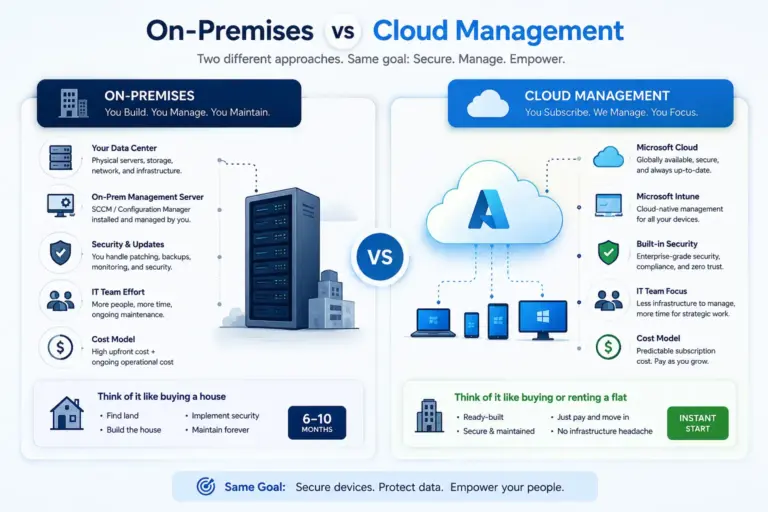
- On-premises management requires organization-owned infrastructure.
- Cloud management supports remote administration.
- Microsoft evolved from SMS and SCCM to Microsoft Intune.
Domain Join, Local Admin, and LAPS
What is domain join?
When a machine is domain joined, it becomes part of the organization’s on-premises Active Directory domain. Day-to-day users are expected to log in with their domain identity, since that’s the point of joining the domain: centralized identity and management. Local accounts on the machine still exist and can still be used to log in, typically reserved for IT or troubleshooting scenarios.
Standard user vs local administrator
- Standard user: has limited privileges, with settings and changes the organization chooses to restrict locked down.
- Local administrator: has full control of the device and can modify any setting.
Creating a local administrator account
This can be done graphically: Control Panel › Users and Accounts, where a new account can be created and set as an administrator. Only an existing admin account can create another admin account; a standard user cannot.
This command opens the Local Users and Groups console, where administrators can manage local users and groups directly, and see who belongs to the local Administrators group.
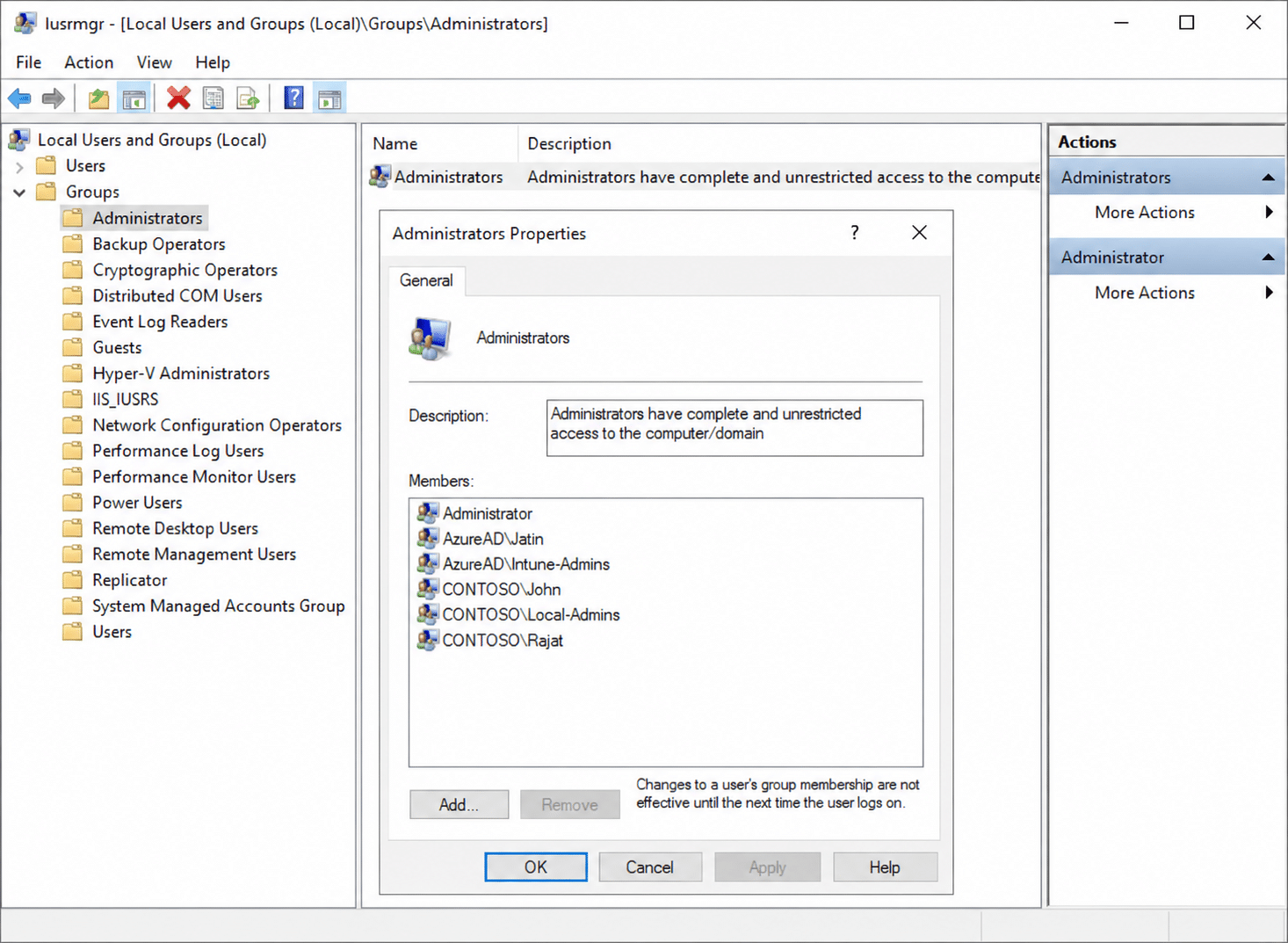
The traditional risk: one shared password
Picture an organization with 100,000 devices, split into four groups of 25,000 for management purposes. In the traditional approach, one local admin username and password was set across an entire 25,000-device group.
If that one shared password leaks, whether through a careless employee, a disgruntled staff member, or a hacker, an attacker can log into all 25,000 machines sharing it. The scale of the blast radius is the entire risk.
LAPS: Local Administrator Password Solution
LAPS solves this by making the local administrator password rotatable. It changes automatically, on a schedule the admin defines (for example, every X days), and again automatically after a restart once the current password has been used.
LAPS is available as a feature inside Intune, Active Directory, and SCCM.
When the password rotates, it is retrieved from the Intune portal or the Entra portal, not remembered manually. An admin looks it up there, logs in, and the machine rotates the password again afterward.
Local admin access is needed whenever a device is removed from Intune or the domain (it will prompt for a local admin password), or when IT needs to uninstall and reinstall an application that a standard user doesn’t have rights to touch.
Instead of relying solely on LAPS, some organizations add a dedicated IT administrator account directly into the local Administrators group on every device. This works but reintroduces some of the shared-credential risk LAPS is designed to avoid.
Why is a shared local admin password risky?
- Domain join connects a device to Active Directory.
- Local administrators have full device control; standard users don’t.
- LAPS automatically rotates local administrator passwords, retrievable from Intune or Entra.
- Some orgs alternatively add an IT account directly to the local Administrators group.
Authentication vs Authorization
Authentication and authorization are separate security concepts.
Authentication proves who you are using a password, PIN, or biometric factor.
Authorization determines what you are allowed to do after you are authenticated.
- Authentication proves identity.
- Authorization determines permissions.
From Windows Intune to Microsoft Intune
- SMS (Systems Management Server): early Microsoft on-premises management.
- SCCM (System Center Configuration Manager): mature on-premises management.
- Windows Intune: Microsoft’s early cloud device-management platform.
- Microsoft Intune: the modern cloud endpoint-management platform.
Intune primarily manages client devices, applications, security policies, and access controls.
- SMS came before SCCM.
- Windows Intune evolved into Microsoft Intune.
- Intune focuses primarily on client device management.
Entra ID and the Importance of Groups
What is Entra ID?
Entra ID, formerly Azure AD, is Microsoft’s cloud directory service for users, devices, groups, and identities.
Why do we need groups?
Intune applications, policies, and updates are assigned to groups. Even one device or user can be targeted through a group.
Static groups vs dynamic groups
- Static group: members are added manually.
- Dynamic group: membership is determined automatically by a rule.
- Entra ID is Microsoft’s cloud directory service.
- Intune assignments are targeted to groups.
- Dynamic groups populate automatically based on rules.
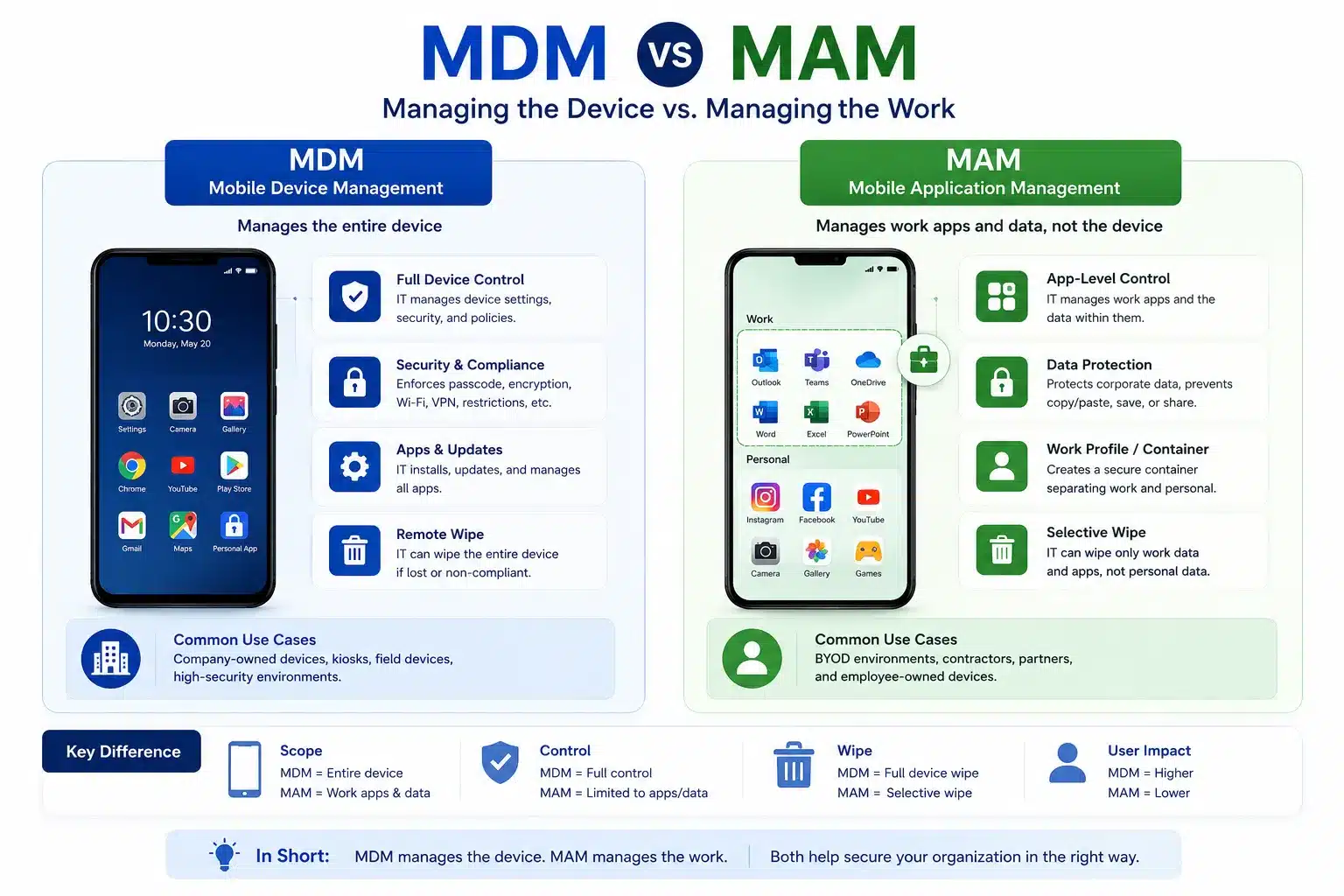
MDM vs MAM
Why App Protection Policy exists
Imagine opening WhatsApp Web on a company computer, copying confidential company data, and pasting it into a chat outside the organization. That’s a data leak, and it can seriously damage a company’s business. This is exactly the risk App Protection Policy is designed to prevent.
App Protection Policy means a company can block cut, copy, paste, print, and save-to-unauthorized-location actions on managed applications. If a company enforces this policy, taking a screenshot of a managed app won’t work either, since the policy disables it.
MDM manages the entire device, including configuration, compliance, patching, and security.
MAM manages specific applications and corporate data without managing the entire device.
The “work profile” container
On a personal device (BYOD) used to access corporate mail, Teams, or Outlook, Intune creates a work profile, a separate container on the device. Only what’s inside that container is managed; the rest of the personal device is untouched.
If the employee leaves, or the device needs to be de-provisioned, IT can perform a selective wipe, removing only the work profile and its data while leaving personal apps and photos intact.
Device ownership models
- BYOD: personal device with a managed work profile container for company apps and data only.
- COBO (Company-Owned, Business-Only): company-owned device, fully managed, used strictly for work.
- COPE (Company-Owned, Personally-Enabled): company-owned device that also allows some personal use.
- Dedicated / single-app (kiosk) device: a device locked to one application, for example a delivery worker’s handset running only the delivery app.
| Under MDM | Under MAM |
|---|---|
| Device compliance | Application access restrictions |
| Windows Update and Defender | Cut, copy, paste, and print restrictions |
| Wi-Fi, Bluetooth, and USB controls | Screenshot restrictions |
| BitLocker and system settings | Selective wipe (work profile only) |
Windows Information Protection (WIP) was an earlier Microsoft mechanism for protecting company data on a device, similar in spirit to today’s App Protection Policy. Modern MDM has absorbed most of what WIP used to do, so it’s mostly historical context now, though the term still shows up in the Intune portal’s automatic enrollment settings.
An employee’s personal phone accesses company email. Which approach is normally used?
- MDM manages the entire device; MAM manages applications and corporate data only.
- Work profiles are a container, so a selective wipe removes only that container.
- Ownership models: BYOD, COBO, COPE, and dedicated/kiosk devices each fit a different use case.
Automatic Enrollment in Intune
Access the Intune portal at intune.microsoft.com or aka.ms/intune; both launch the same portal.
MDM user scope
- 1
None
No users can enroll automatically.
- 2
Some
Only users in a selected group can enroll automatically; a group has to be created and assigned for this to work.
- 3
All
All users can enroll automatically.
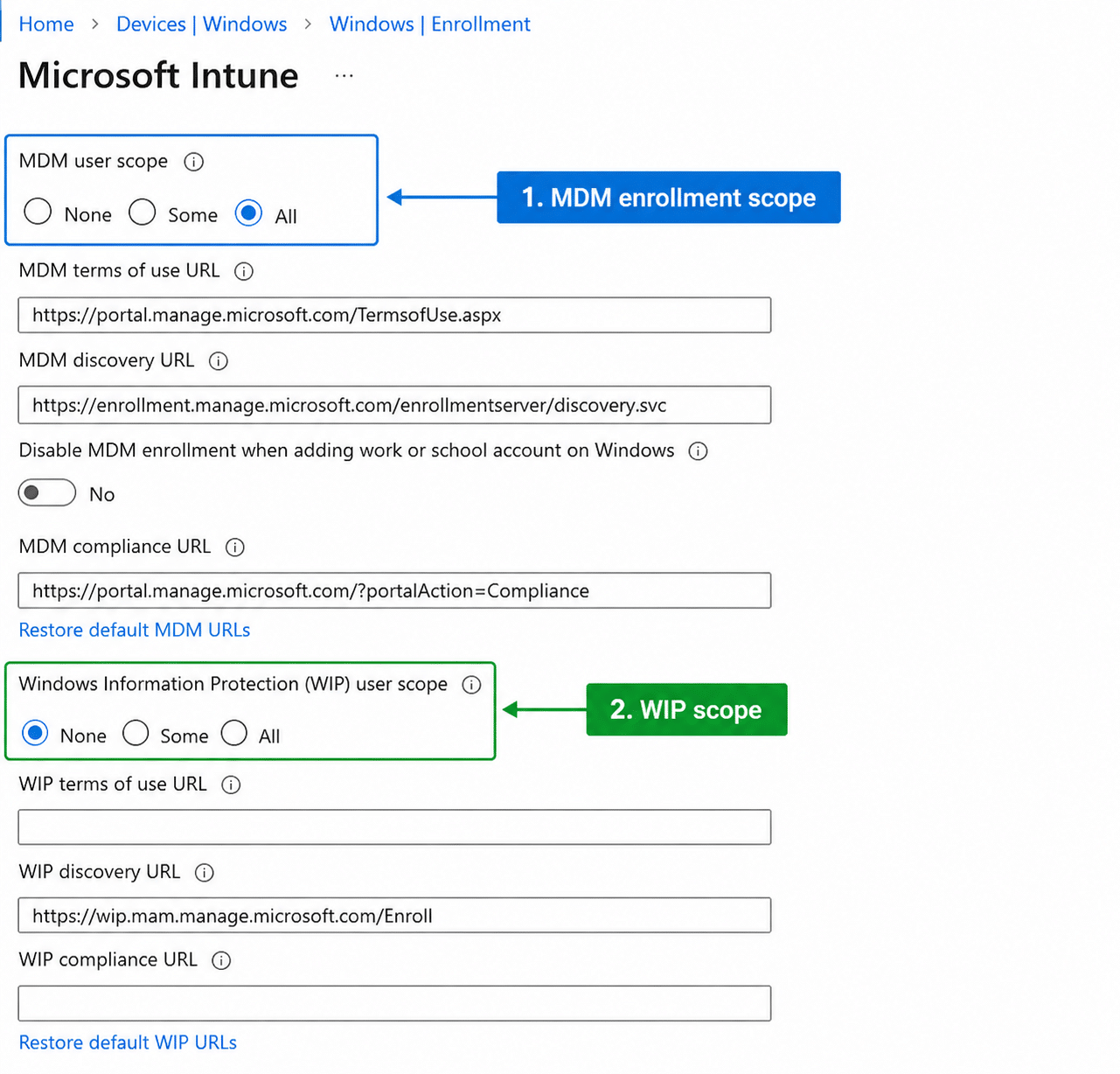
Licensing gates these settings
If an organization has 10,000 users but only 5,000 Intune licenses, only 5,000 users can be scoped to enroll. Licensing is the real ceiling, not just this setting.
Setting the scope to Some (or configuring a second scope option) requires an Entra ID P1 license. Without it, the relevant options appear greyed out and read-only, even to a Global Administrator, because the restriction is about licensing, not permissions.
A Global Administrator can do almost anything across the tenant, including configuring these settings when licensing allows it. An Intune Administrator role alone is narrower and may not be sufficient for every setting on this page.
Dynamic groups also need a license
Groups used for enrollment scope can be static (members added manually) or dynamic (membership set automatically by a rule, such as “anyone in the India region”). Creating a dynamic group requires an Entra P1 or P2 license; without it, only static groups can be created, and a dynamic membership rule simply won’t activate.
Entra portal location
- Automatic Enrollment supports None, Some, and All scopes.
- Available Intune licenses cap how many users can actually enroll.
- The Some scope and dynamic groups both require an Entra P1 (or P2) license.
- The setting can also be viewed in Entra under Mobility.
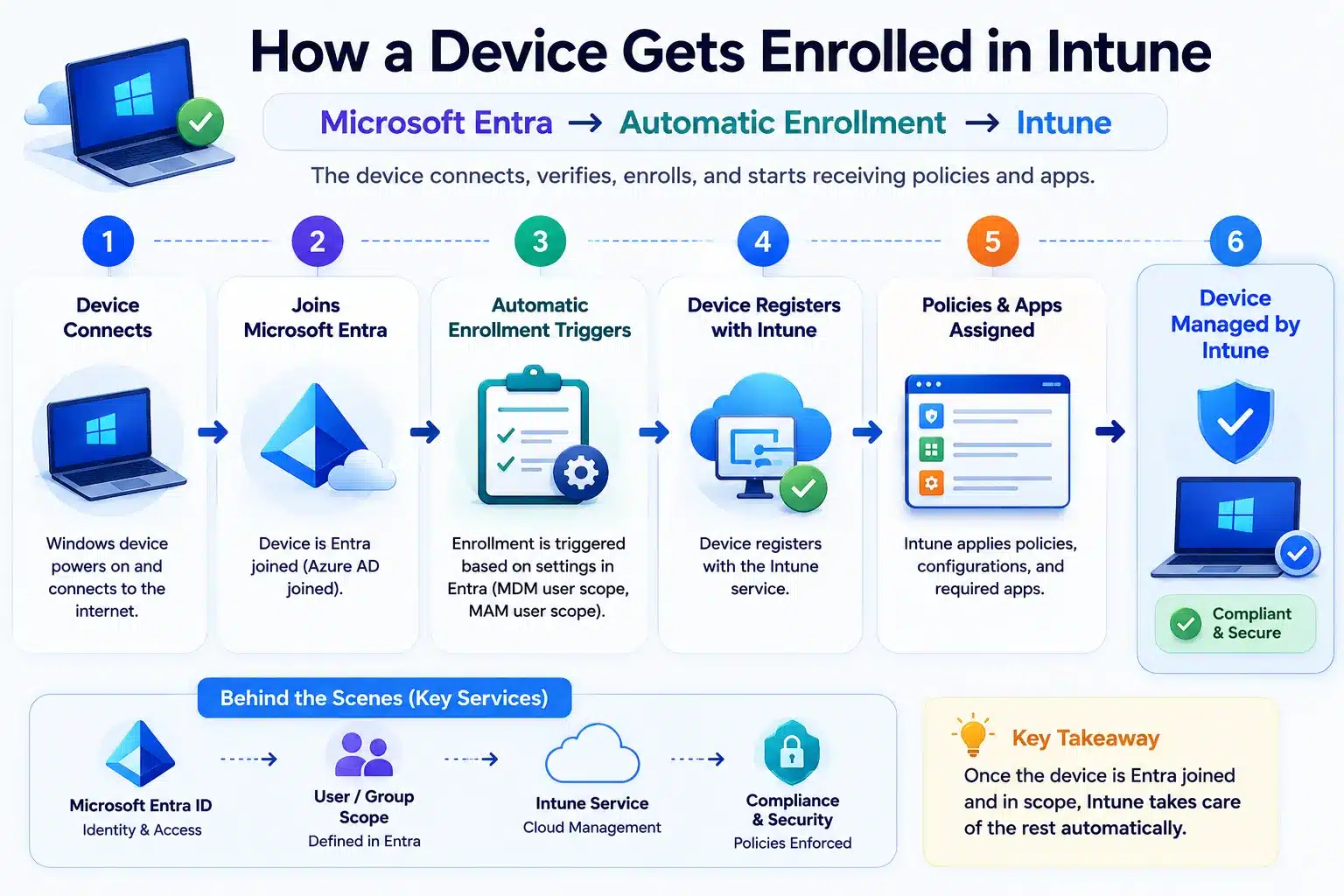
How a Device Actually Gets Enrolled
The enrollment process starts in Entra ID.
- 1
Device joins or registers in Entra ID
The device establishes an identity in the cloud directory.
- 2
Automatic enrollment starts
The device enrolls automatically when the required settings and licensing are present.
- 3
Device becomes managed by Intune
Intune applies policies, applications, and configuration.
The user needs a valid Intune license.
The user must be covered by the MDM scope.
- A device first joins or registers in Entra ID.
- Automatic enrollment then brings it under Intune management.
- A valid license and correct MDM scope are required.
Co-Management: Bridging SCCM and Intune
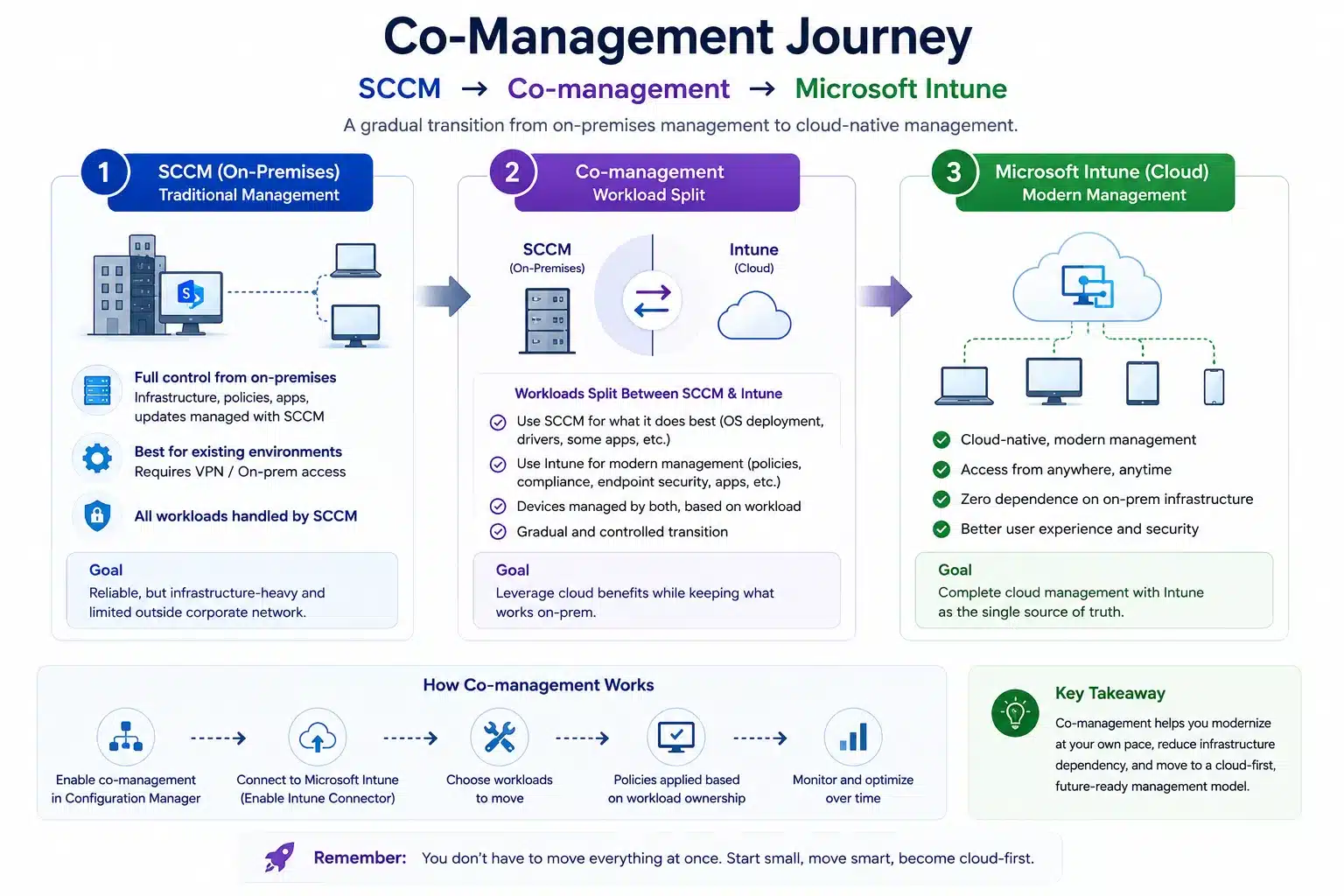
Co-management allows SCCM and Intune to manage the same device while responsibilities are divided between them.
Migration process
- 1
Start fully on SCCM
Devices are initially managed by SCCM.
- 2
Enable co-management
SCCM and Intune manage the same devices.
- 3
Pilot workloads
A small group tests selected Intune workloads.
- 4
Validate
Confirm that Intune delivers the workload correctly.
- 5
Shift workloads gradually
Move additional workloads from SCCM to Intune.
- 6
Complete the migration
Remove or disable the SCCM dependency.
- Co-management combines SCCM and Intune.
- Workloads can be moved gradually to Intune.
- Testing and validation reduce migration risk.
Co-Management vs Co-Existence
These two terms sound similar but describe different scenarios, and mixing them up is a common interview trip-up.
| Co-management | Co-existence |
|---|---|
| Both management tools are Microsoft products | A third-party MDM solution is involved alongside Microsoft’s |
| Example: SCCM + Intune managing the same device | Example: Intune or SCCM running alongside a non-Microsoft MDM |
| Used as a planned migration path from SCCM to Intune | Used when a third-party tool is already in place and can’t be removed immediately |
Co-management is the workload-splitting approach covered above, with SCCM and Intune sharing responsibility for the same device, both being Microsoft products. Co-existence describes a different situation, where a device is managed by Intune or SCCM while a completely separate, third-party MDM solution also has a hand in managing it.
- Co-management = two Microsoft tools (SCCM + Intune) sharing one device.
- Co-existence = a Microsoft tool plus a third-party MDM solution on the same device.
Windows Autopilot
Traditional deployment
Traditional Operating System Deployment uses tools such as SCCM, MDT, or WDS to create and apply a reference image.
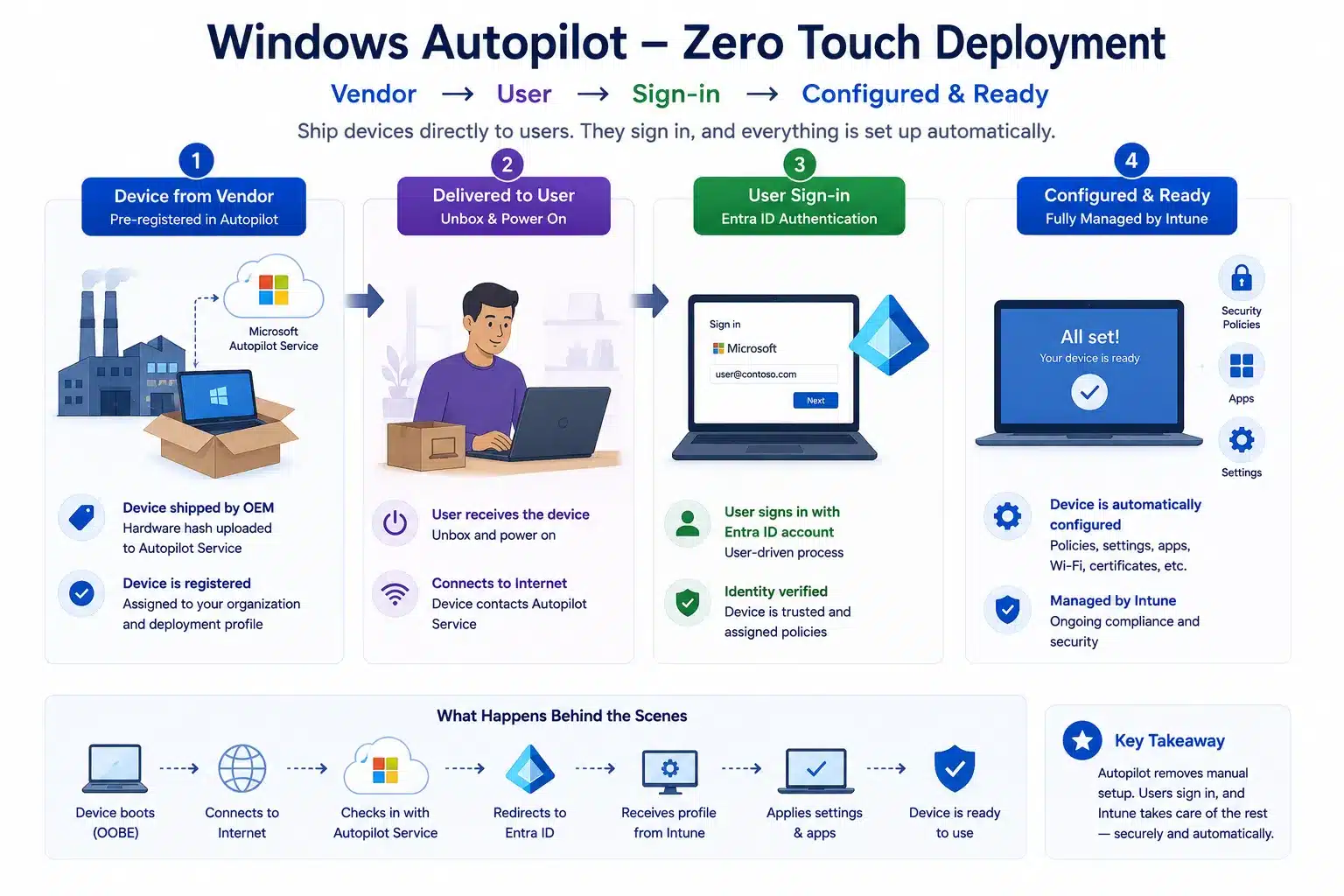
What is Windows Autopilot?
Windows Autopilot configures a corporate Windows device without requiring IT to manually image it.
| Traditional way | Autopilot way |
|---|---|
| Device goes to IT for imaging | Vendor ships the device directly to the user |
| Manual configuration | Automatic configuration after sign-in |
- Autopilot removes manual imaging work.
- Devices can be shipped directly to users.
- Configuration begins after the user connects and signs in.
Endpoint Analytics
Endpoint Analytics measures the digital employee experience across managed devices.
- Startup and boot performance
- Application crashes
- Battery health
- Device performance trends
- Overall user experience
DEX means Digital Employee Experience. DEX tools help organizations identify user-impacting problems proactively.
- Endpoint Analytics identifies device and user experience issues.
- DEX means Digital Employee Experience.
- Proactive monitoring can reduce help-desk incidents.
Microsoft Intune Suite, Licensing, and Copilot
Unified Endpoint Management
Unified Endpoint Management combines modern cloud management with traditional endpoint-management capabilities.
Microsoft Intune Suite
Intune licensing varies by plan. Advanced capabilities may be included in certain plans or available as add-ons.
Remote Help
Remote Help allows administrators to remotely connect to and troubleshoot a user’s device.
Endpoint Privilege Management
Endpoint Privilege Management provides temporary elevated rights for approved actions without permanently making users local administrators.
Copilot in Intune
Copilot helps administrators query and understand Intune data using natural language.
- Intune Suite provides advanced management capabilities.
- Remote Help supports remote troubleshooting.
- Endpoint Privilege Management provides controlled elevation.
- Copilot assists with Intune administration.
Zero Trust and Windows Hello for Business
What is Zero Trust?
Zero Trust means access is never trusted automatically. Every request must be verified.
Never trust automatically, always verify. Technologies such as MFA and Conditional Access help implement this approach.
Windows Hello for Business
Windows Hello for Business uses a PIN, fingerprint, or facial recognition instead of relying only on traditional passwords.
The credential is bound to the device’s TPM chip and protected locally on the device.
What makes Windows Hello for Business more secure than a traditional password?
- Zero Trust verifies every access request.
- Windows Hello supports PIN, fingerprint, and facial recognition.
- Credentials are protected using the device’s TPM.
Day 2 goes deeper into policies and access.
The next class builds on these foundations with configuration policies, GPO vs Intune, licensing plans, RBAC and audit logs, device ownership, and Microsoft Entra device states — setting up everything needed for the hands-on enrollment lab that follows.