
Deploy corporate wallpaper in Intune reliably by separating file delivery from policy enforcement. In this guide, a PowerShell platform script first downloads and stages the wallpaper locally on the Windows device, then an ADMX-backed Settings Catalog policy applies that local image as the user’s desktop wallpaper.
This method is practical for lab environments and production-style deployments. When you deploy corporate wallpaper in Intune this way, each part can be verified independently: the script proves the image exists on disk, and the policy proves Windows is configured to use that local file path.
The deployment approach RECOMMENDED
This deployment uses two Intune components working together. When you deploy corporate wallpaper in Intune, the most reliable approach splits the job into two parts:
| Component | What it does | Recommended assignment |
|---|---|---|
| PowerShell platform script | Downloads the wallpaper image and saves it under C:\ProgramData so the file exists locally on the device. | Device group |
| ADMX-backed Settings Catalog policy | Applies the Desktop Wallpaper (User) setting and points it to the staged local file path. | User group |
The script should run first so the wallpaper file is already present before the Intune desktop wallpaper policy tries to apply it. This makes troubleshooting much easier because you can verify file delivery and policy enforcement separately.
✅ Why this pattern works well
The script handles file delivery, and the policy handles enforcement. Each part has one clear job, one clear assignment target, and one clear validation step.
🧠 Simple way to remember it
The script puts the image on the device. The ADMX policy tells Windows to use that image as the wallpaper.
ℹ️ Beginner-friendly explanation: Think of it like hanging a picture. First, someone must bring the picture into the room. Then someone can hang it on the wall. The PowerShell script brings the wallpaper file to the device, and the ADMX policy applies it for the user.
Why one 4K wallpaper is enough
Many admins initially think they need a different wallpaper for every screen resolution. In most environments, that creates unnecessary maintenance. A better approach is to design one clean 16:9 wallpaper at 3840×2160, let Windows scale it down where needed, and enforce it using a single Intune desktop wallpaper policy.
| Approach | Maintenance effort | Reliability | Recommended use |
|---|---|---|---|
| One 4K wallpaper staged locally and applied by ADMX policy | Medium | High | Best choice for most standard Windows environments |
| Multiple wallpaper files by resolution | High | Medium | Useful only when exact design placement matters |
| Dynamic wallpaper selection by display resolution | High | Depends on implementation | Advanced kiosk or branding scenario only |
The real design challenge is not only screen resolution. It is also aspect ratio. A 16:9 image looks right on common screens such as 1920×1080, 2560×1440, and 3840×2160. On taller or narrower screens, Windows may crop or reposition the image depending on the wallpaper style. That is why the safe zone rule matters when you deploy corporate wallpaper in Intune.
✅ Practical recommendation: Use one 3840×2160 16:9 wallpaper for the main deployment. Create separate aspect-ratio variants only if your organisation has strict branding, kiosk, digital signage, or legal display requirements.
The wallpaper safe zone rule
The most important part of a successful corporate wallpaper deployment is not only the Intune configuration. It is also the design of the wallpaper image itself. Before you deploy corporate wallpaper in Intune, the image should be reviewed and approved by the right team. In many organisations, the wallpaper is created by a branding, marketing, communications, or creative team, while IT is responsible for deploying it to managed devices.
For that reason, IT should provide a few simple technical requirements before the wallpaper is finalised. The image should use a 16:9 canvas, important content should stay inside the central safe zone, and logos or text should not be placed too close to the edges, corners, or taskbar area. These requirements apply regardless of whether you use the ADMX wallpaper Settings Catalog or any other policy method.
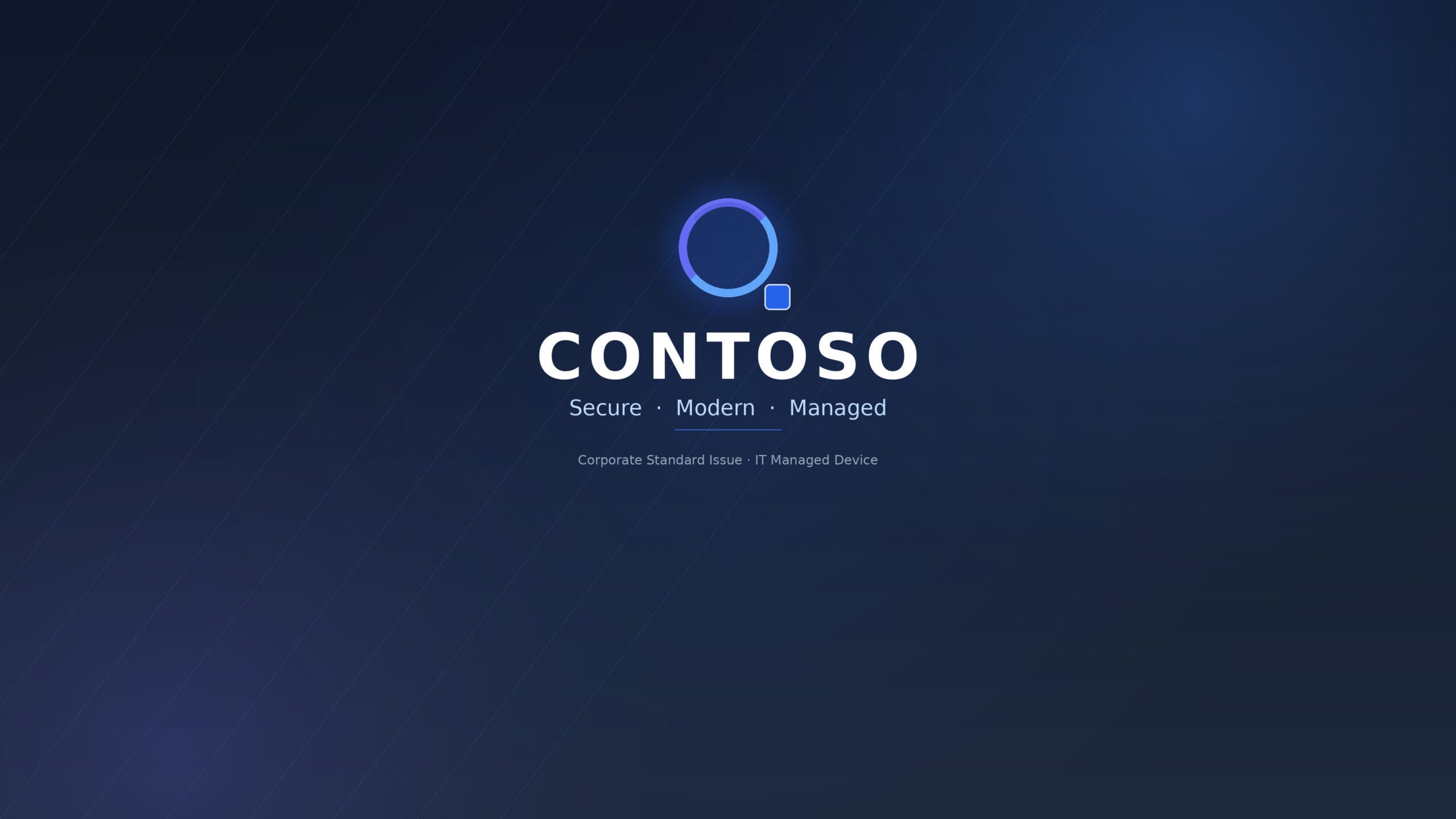
Contoso
Secure. Modern. Managed.
✅ Good wallpaper design
Centered logo, limited text, enough empty space, and no critical information close to the corners, screen edges, or bottom taskbar area.
🚫 Risky wallpaper design
Important text in the bottom-right corner, a wide banner across the full screen, or a logo placed too close to the left or right edge.
ℹ️ Real-world ownership: The creative or branding team may own the wallpaper design, but IT should define the technical deployment standards. This includes recommended resolution, aspect ratio, file type, safe-zone guidance, naming convention, and test-device validation.
💡 Design tip: Review the wallpaper on at least one laptop screen, one external monitor, and one high-resolution display before broad deployment.
Prerequisites
Before building the deployment, confirm the following are in place. This guide covers corporate wallpaper Windows 11 Intune and Windows 10 managed devices using the same two-part method.
- Windows 10 or Windows 11 devices enrolled in Microsoft Intune
- Microsoft Entra joined or hybrid joined Windows devices
- A pilot device group for the PowerShell staging script
- A pilot user group for the ADMX wallpaper policy
- An Intune role that can create scripts and configuration profiles
- One corporate wallpaper image prepared at 3840×2160 resolution
- A JPG, JPEG, or PNG wallpaper file
- A direct HTTPS source URL that devices can download from
ℹ️ Lab tip: For an MD-102 or Intune portfolio project, start with one pilot Windows device and one pilot user. This is closer to a real production change-control habit than assigning immediately to all users or devices.
Related Intune Guide
How to Block USB Storage in Microsoft Intune
Once you have deployed your corporate wallpaper, you can further secure your managed Windows devices by blocking USB storage access across your Intune tenant.
💡 Order matters: The staging script should succeed first. The ADMX policy only points to a local file path; it does not download the wallpaper itself.
Prepare the wallpaper file
Create one clean corporate wallpaper image using a 16:9 canvas. The recommended size is 3840×2160, commonly known as 4K UHD.
| Item | Recommended value | Why it matters |
|---|---|---|
| Resolution | 3840×2160 | High-quality source image that scales down cleanly on 1080p and 1440p screens |
| Aspect ratio | 16:9 | Works well with common Windows laptop and monitor resolutions |
| File type | JPG, JPEG, or PNG | Common image formats that Windows can use as desktop wallpaper |
| Recommended filename | contoso-corporate-wallpaper-3840-2160.jpg | Lowercase filename with hyphens and no spaces |
| Important text | Inside the central safe zone | Reduces cropping issues on screens with different aspect ratios |
| Pre-production review | Test on representative screens | Confirms the design still works before wider deployment |
Recommended filename format
Use a simple filename with lowercase letters, numbers, and hyphens. Avoid spaces and special characters. This makes both the source URL and the local staged path easier to troubleshoot.
Host the wallpaper source file
The PowerShell wallpaper staging script needs a direct HTTPS URL to download the wallpaper image. In this lab, the wallpaper source file is hosted from the site-root wallpaper folder:
✅ Good source locations
A site-root HTTPS folder, Azure Blob Storage, Azure Static Website hosting, a corporate CDN, or another HTTPS location that returns the actual image file directly.
🚫 Avoid unreliable links
Avoid links that open a preview page, require interactive sign-in, expire, or return HTML instead of the actual image file.
✅ Production recommendation: For a real organisation, use a company-controlled HTTPS location such as Azure Blob Storage or a corporate CDN. Use versioned filenames when you want predictable updates, such as contoso-corporate-wallpaper-2026-06.jpg. This makes it easier to manage the ADMX wallpaper Settings Catalog policy across multiple update cycles.
⚠️ Important: If you replace the image at the same URL later, the Intune platform script will not automatically rerun just because the web file changed. For controlled updates, change the script or use a new versioned file URL and redeploy.
Create the wallpaper staging script CORE STEP
The PowerShell script below is the first of the two components you need to deploy corporate wallpaper in Intune. This PowerShell wallpaper staging script downloads the wallpaper from the source URL and saves it to a predictable local path under C:\ProgramData. It also validates that the downloaded file looks like a real JPG or PNG image before reporting success.
Script name
PowerShell script
$WallpaperUrl = "https://anupmoitra.com/wallpaper/contoso-corporate-wallpaper-3840-2160.jpg"
$WallpaperFolder = "C:\ProgramData\Contoso\Wallpapers"
$WallpaperFileName = "contoso-corporate-wallpaper-3840-2160.jpg"
$WallpaperPath = Join-Path $WallpaperFolder $WallpaperFileName
$TempPath = Join-Path $WallpaperFolder "$WallpaperFileName.tmp"

try {
    [Net.ServicePointManager]::SecurityProtocol = [Net.SecurityProtocolType]::Tls12

    New-Item -ItemType Directory -Path $WallpaperFolder -Force | Out-Null

    Invoke-WebRequest -Uri $WallpaperUrl -OutFile $TempPath -UseBasicParsing -ErrorAction Stop

    if (-not (Test-Path $TempPath)) {
        throw "Wallpaper download did not create a file."
    }

    $FileSize = (Get-Item $TempPath).Length

    if ($FileSize -lt 10240) {
        throw "Downloaded file is too small. The URL may have returned an error page instead of an image."
    }

    $Header = New-Object byte[] 8
    $FileStream = [System.IO.File]::OpenRead($TempPath)
    try {
        $FileStream.Read($Header, 0, $Header.Length) | Out-Null
    }
    finally {
        $FileStream.Close()
    }

    $IsJpeg = ($Header[0] -eq 0xFF -and $Header[1] -eq 0xD8 -and $Header[2] -eq 0xFF)
    $IsPng  = ($Header[0] -eq 0x89 -and $Header[1] -eq 0x50 -and $Header[2] -eq 0x4E -and $Header[3] -eq 0x47)

    if (-not ($IsJpeg -or $IsPng)) {
        throw "Downloaded file does not appear to be a valid JPG or PNG image."
    }

    Move-Item -Path $TempPath -Destination $WallpaperPath -Force

    Write-Output "Wallpaper staged successfully at $WallpaperPath"
    exit 0
}
catch {
    Write-Output "Wallpaper staging failed. Error: $($_.Exception.Message)"
    exit 1
}
ℹ️ Why this script validates the file: some URLs can return an HTML error page or a sign-in page instead of the image. Without validation, the script could accidentally save a broken file and still appear successful.
Upload and assign the staging script
Upload the PowerShell wallpaper staging script in Intune as a platform script and assign it to a device group. The script should run in system context so it can write to C:\ProgramData.
Create the platform script
In the Microsoft Intune admin center, navigate to:
| Name | SCRIPT-WIN-Stage-Corporate-Wallpaper |
| Description | Downloads and stages the corporate wallpaper under C:\ProgramData for later use by an ADMX wallpaper policy. |
| Script file | Stage-Corporate-Wallpaper.ps1 |
| Run this script using the logged on credentials | No |
| Enforce script signature check | No |
| Run script in 64-bit PowerShell host | Yes |
| Assignment | Pilot Windows device group |

✅ Recommended assignment: assign the staging script to a device group. The file is machine-level content and should exist before any specific user signs in.
Verify the staging script
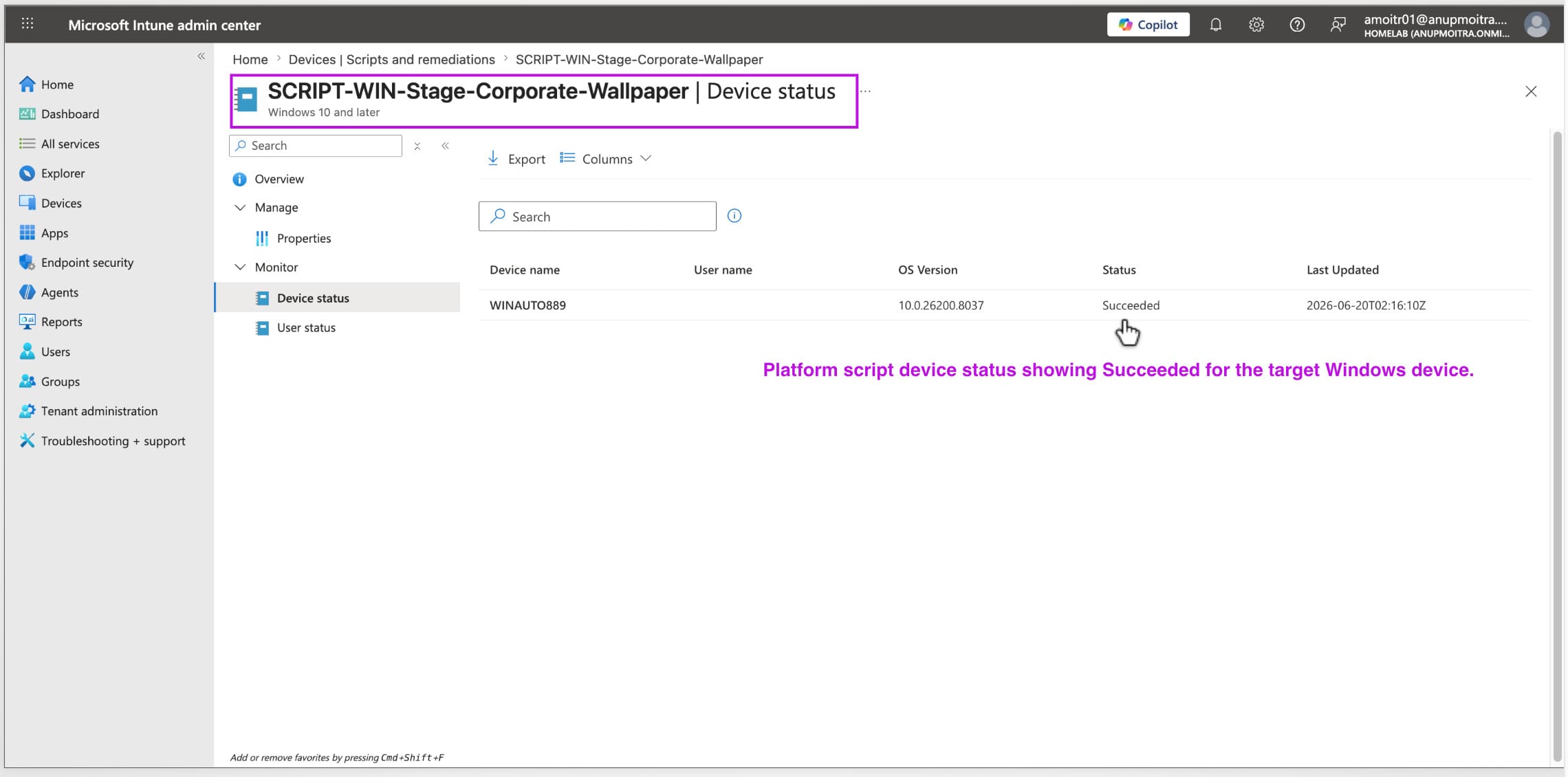
Before creating or troubleshooting the wallpaper policy, confirm that the PowerShell wallpaper staging script in Intune ran successfully and the image exists at the expected local path.
| Checkpoint | Expected result |
|---|---|
| Script run status | Succeeded |
| Local folder | C:\ProgramData\Contoso\Wallpapers |
| Local wallpaper path | C:\ProgramData\Contoso\Wallpapers\contoso-corporate-wallpaper-3840-2160.jpg |
Optional local check on the endpoint
On the target Windows device, confirm the file exists:
Test-Path "C:\ProgramData\Contoso\Wallpapers\contoso-corporate-wallpaper-3840-2160.jpg"The command should return:
True💡 Troubleshooting rule: If the file is not present, fix the script or source URL first. The ADMX wallpaper policy cannot apply a local wallpaper file that does not exist.
Create the ADMX wallpaper policy CORE STEP
After the wallpaper file is staged locally, create a Settings Catalog policy that uses the ADMX-backed Desktop Wallpaper (User) setting. This is the second and final step to deploy corporate wallpaper in Intune: the ADMX wallpaper Settings Catalog policy points Windows to the local image path created by the script.
Step 1: Create a new Settings Catalog policy
| Platform | Windows 10 and later |
| Profile type | Settings catalog |
| Name | CFG-WIN-Corporate-Wallpaper-ADMX |
| Description | Applies the corporate desktop wallpaper using the ADMX-backed Desktop Wallpaper user setting. |
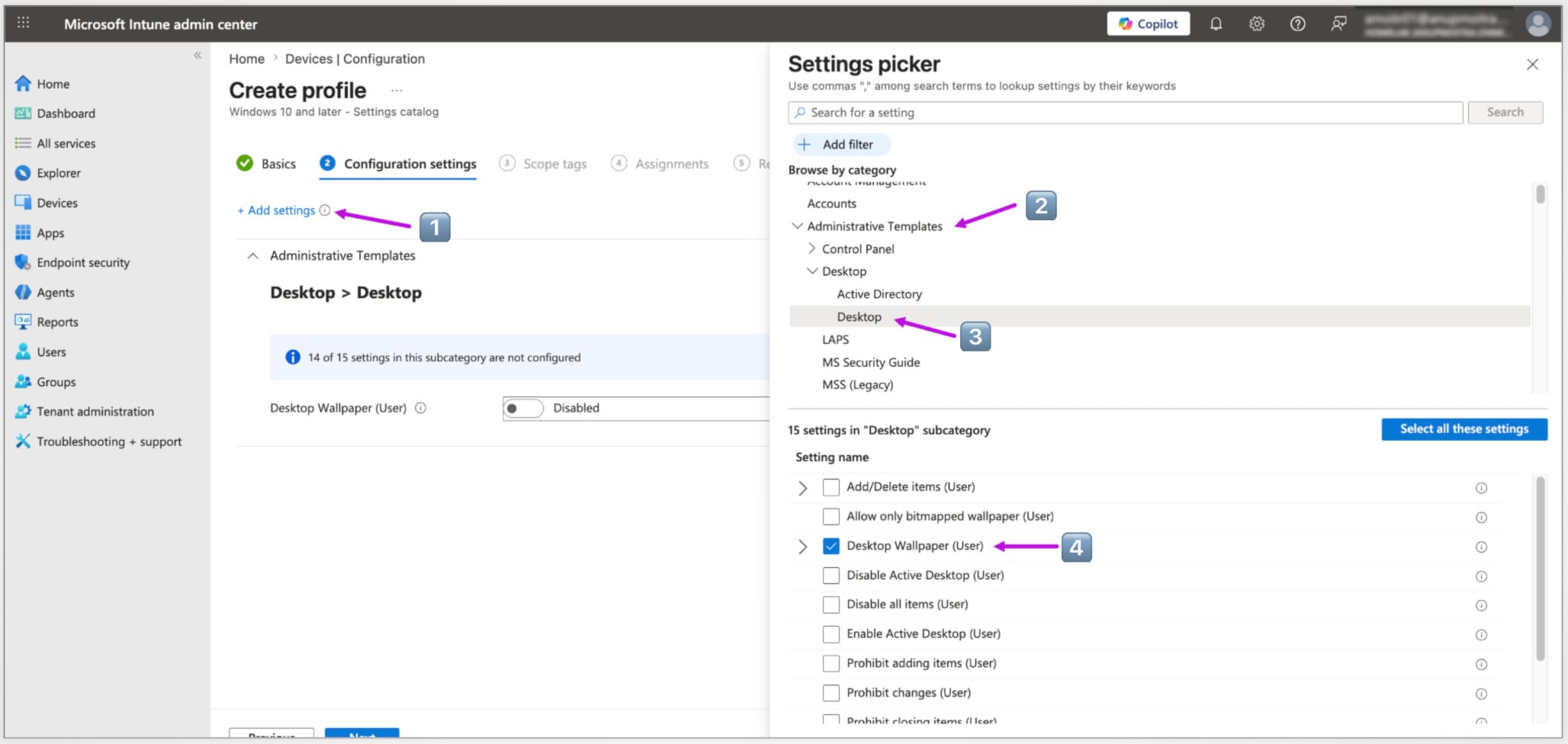
Step 2: Add the Desktop Wallpaper (User) setting
In the Settings picker, browse to:
| Desktop Wallpaper (User) | Enabled |
| Wallpaper Name | C:\ProgramData\Contoso\Wallpapers\contoso-corporate-wallpaper-3840-2160.jpg |
| Wallpaper Style | Fill |
⚠️ Critical detail: Use a normal Windows file path here, such as C:\ProgramData\Contoso\Wallpapers\contoso-corporate-wallpaper-3840-2160.jpg. Do not use a web URL and do not use a file:/// format.

Assign the ADMX policy
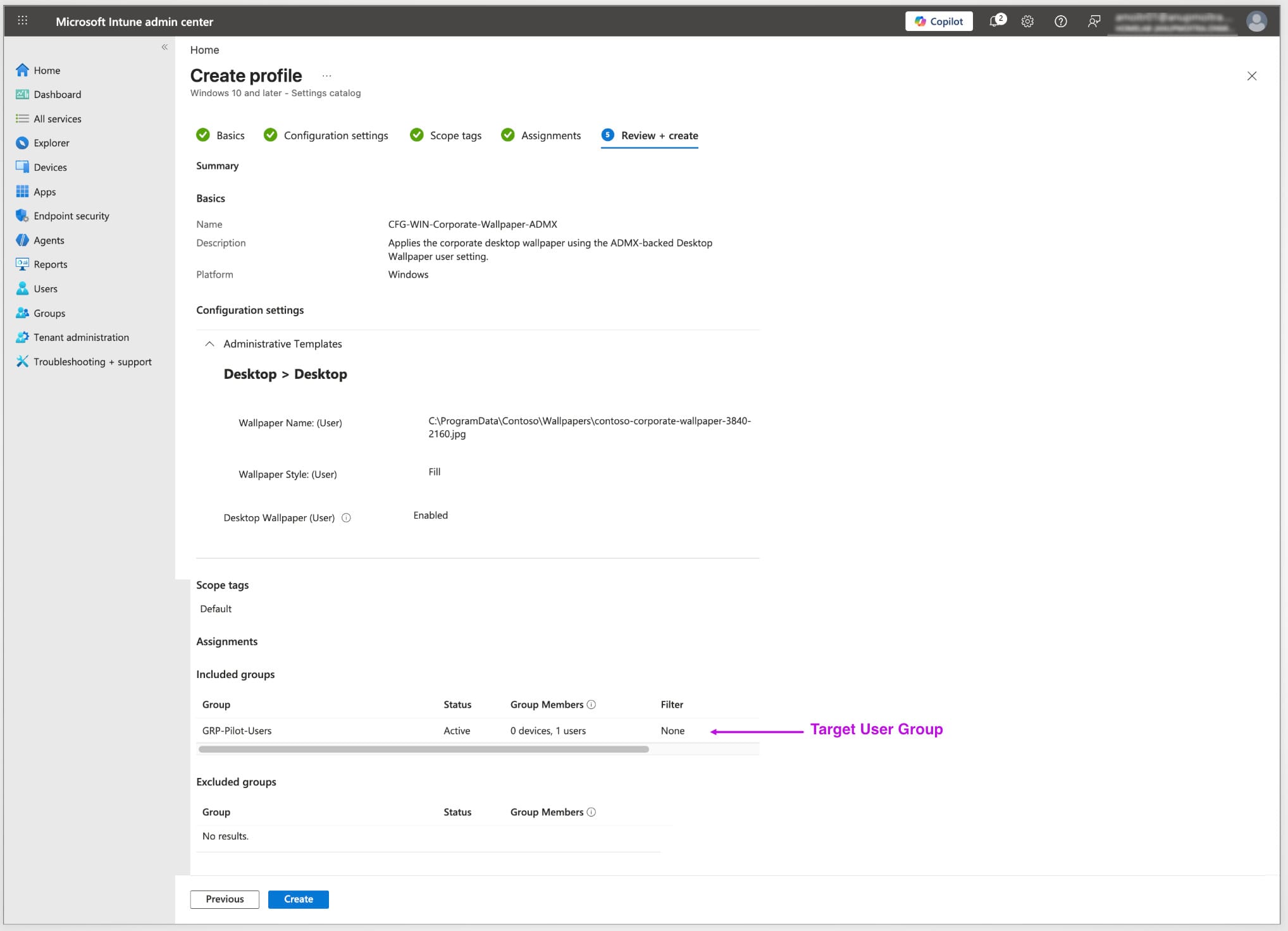
The Intune desktop wallpaper policy uses a user setting, so assign it to a pilot user group. Keep the script and the policy assignments separate because they solve different parts of the deployment.
| Component | Assignment target | Why |
|---|---|---|
SCRIPT-WIN-Stage-Corporate-Wallpaper | Pilot device group | Stages the image file on the machine itself |
CFG-WIN-Corporate-Wallpaper-ADMX | Pilot user group | Applies a per-user desktop wallpaper setting |
Recommended assignment flow
- Confirm the platform script is assigned to the pilot device group.
- Open the ADMX wallpaper policy.
- Go to the Assignments tab.
- Select Add groups under Included groups.
- Select your pilot user group.
- Review Scope tags if your tenant uses them.
- Select Create.
💡 Production tip: Test with one pilot device and one pilot user first when you deploy corporate wallpaper in Intune. After validation, expand the Intune desktop wallpaper policy gradually to additional device and user groups.
Verify in Intune
Verify both components separately. A successful Intune desktop wallpaper policy status does not prove the wallpaper file was downloaded, and a successful script status does not prove the wallpaper setting applied for the user.
| Component | Where to check | Expected status |
|---|---|---|
| PowerShell staging script | Platform script device status | Succeeded |
| ADMX wallpaper policy | Configuration policy device and user check-in status | Succeeded |
| Endpoint file check | Local filesystem on the device | C:\ProgramData\Contoso\Wallpapers\... exists |
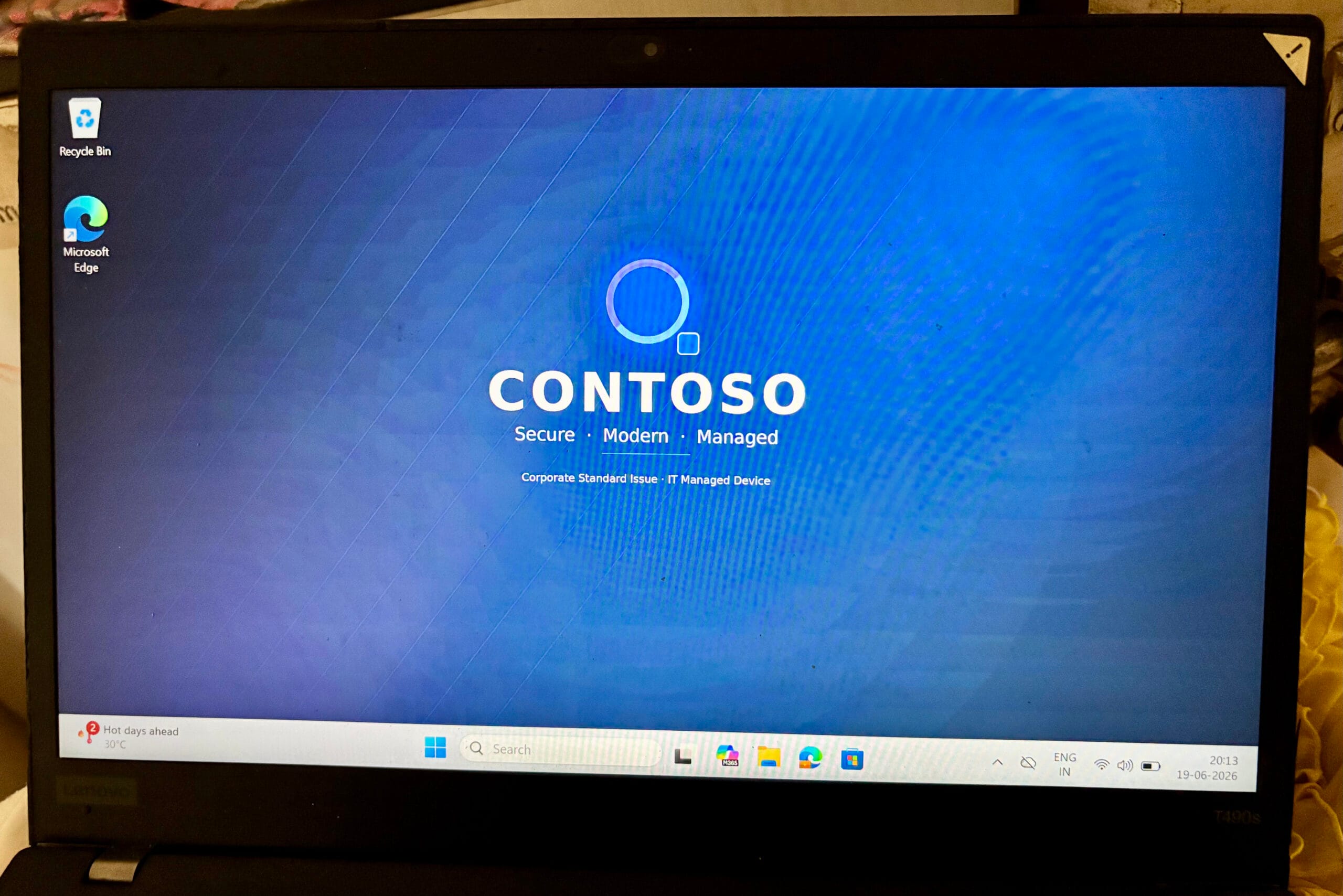
| User experience check | Signed-in user’s Windows desktop | Corporate wallpaper is visible |
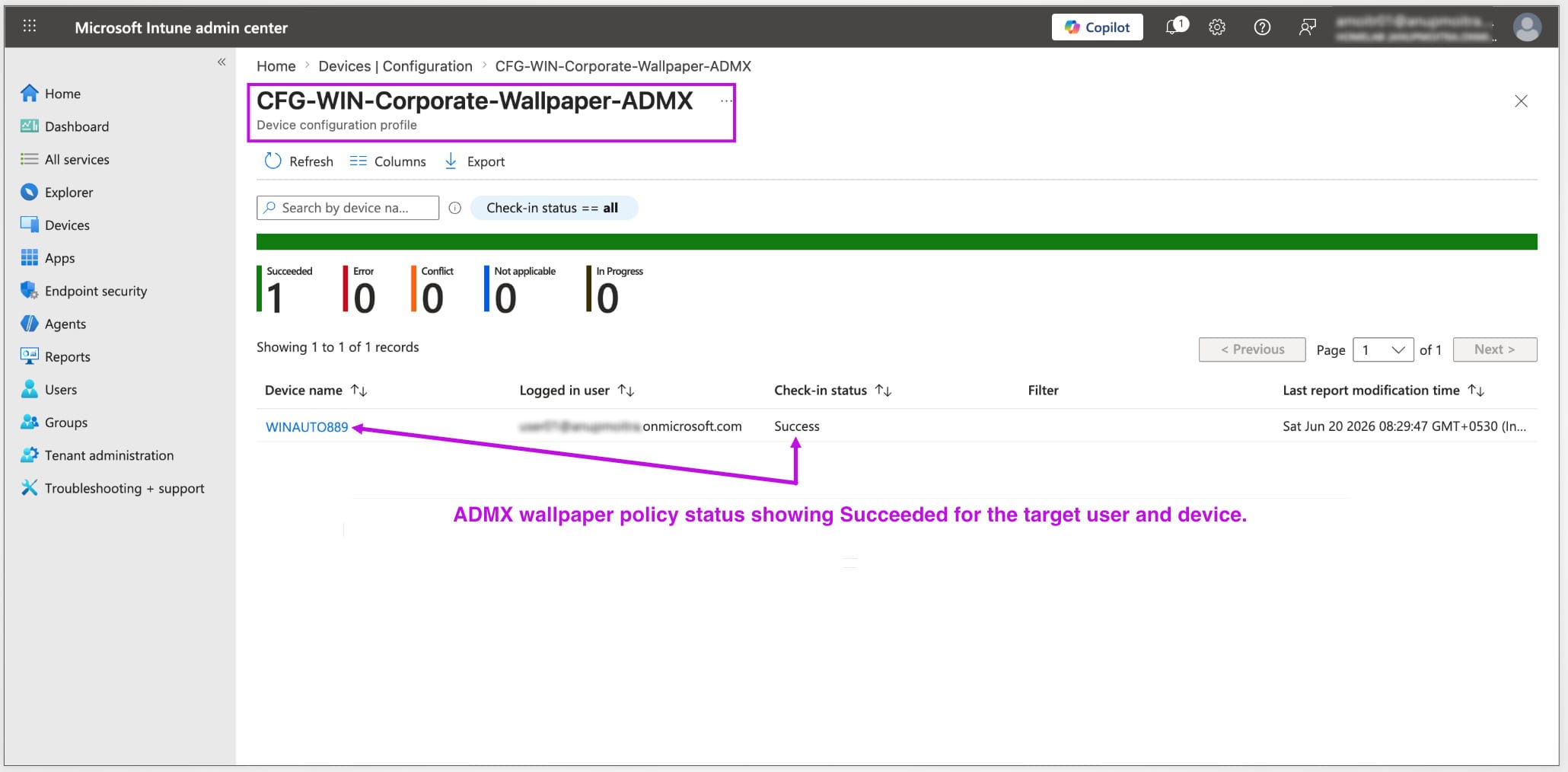
ℹ️ Reporting tip: Intune reporting can lag behind the actual endpoint state when you deploy corporate wallpaper in Intune. Always combine portal verification with a direct check on the Windows device.
Test on the endpoint
Endpoint testing is the final validation step when you deploy corporate wallpaper in Intune. Test corporate wallpaper Windows 11 Intune devices and Windows 10 devices separately to confirm the image looks correct on both before broad rollout.
- The staged wallpaper file exists at the expected local path
- The corporate wallpaper appears on the desktop
- The image is sharp and not pixelated
- The logo and text are readable
- No important text is hidden behind the taskbar
- The wallpaper still looks acceptable on an external monitor
- The wallpaper remains after sign-out and sign-in
- The result is acceptable on representative screen sizes
Force a manual sync from the device
If the script or policy has not applied yet, trigger a sync from the Windows device:
Or sync from the Intune admin center:
💡 User-session tip: Because the Intune desktop wallpaper policy is user-based, signing out and signing back in can help the user experience refresh cleanly after the policy arrives.
Troubleshooting
Most issues when you deploy corporate wallpaper in Intune come from one of two places: the wallpaper file was not staged correctly, or the ADMX policy is pointing to the wrong local path.
| What you see | Most likely cause | What to check |
|---|---|---|
| Script shows Error | Source URL is unreachable, returns HTML, or requires sign-in | Open the source URL on the device and confirm it returns the raw image file |
| Script succeeds but file is missing | Script path mismatch or local write issue | Confirm the script output and check C:\ProgramData\Contoso\Wallpapers |
| ADMX policy shows Error | Wallpaper path is incorrect or file does not exist yet | Confirm the local path is plain C:\..., not a web URL or file:/// path |
| Wallpaper does not appear immediately | User policy has not refreshed or user session needs to reload | Sync the device, then sign out and sign back in |
| Wallpaper applies for one user but not another | ADMX policy user group does not include the second user | Check the user group assignment, not only the device group |
| Wallpaper looks blurry | Source image resolution is too low | Use a 3840×2160 image instead of a lower-resolution image |
| Logo or text is cropped | Important content is too close to the edges | Redesign the wallpaper and keep content inside the safe zone |
Quick local file check
Run this on the target Windows device:
Test-Path "C:\ProgramData\Contoso\Wallpapers\contoso-corporate-wallpaper-3840-2160.jpg"If the result is False, troubleshoot the script before troubleshooting the ADMX policy.
✅ Quick sanity check: The local file must exist before the ADMX wallpaper policy can work. Always verify the file first.
⚠️ Common mistake: Entering the wallpaper path as a web URL or file:/// path in the ADMX setting. Use the plain Windows path: C:\ProgramData\Contoso\Wallpapers\contoso-corporate-wallpaper-3840-2160.jpg.
Official Microsoft references
The following Microsoft Learn pages are useful when validating the components you use to deploy corporate wallpaper in Intune, including the PowerShell wallpaper staging script and the ADMX wallpaper Settings Catalog policy:
Summary: Deploy Corporate Wallpaper in Intune
The most reliable way to deploy corporate wallpaper in Intune is to separate file delivery from policy enforcement. In this method, a PowerShell platform script stages the image locally, and an ADMX-backed user policy applies that local file as the desktop wallpaper.
🔑 Key takeaways
- Split the job: a platform script stages the file, and an ADMX policy applies it
- Assign the script to a device group because the file belongs on the device
- Assign the ADMX wallpaper policy to a user group because Desktop Wallpaper is a user setting
- Use a plain Windows file path in the ADMX policy, not a URL or
file:///format - Use one 3840×2160 16:9 wallpaper for most Windows environments
- Keep logos, taglines, and legal text inside the central safe zone
- Verify the script status first before troubleshooting the wallpaper policy
- Confirm the actual file exists under C:\ProgramData on the endpoint
- Validate the result directly on the Windows desktop, not only in the Intune portal
- Use a company-controlled HTTPS source location with versioned filenames for easier updates
- Start with a pilot device group and pilot user group before broad deployment